
Overview
A chrome cassette labeled CAPCUT $19.99 cracking apart, five neon replacement cassettes emerging from the break against a magenta sunset
1. What changed at CapCut
Here is the news, with no theater.
In late January 2026, CapCut Pro's annual price went from $77/year to $179.99/year. The monthly tier landed at $19.99/month. The new annual rate took hold for renewing subscribers starting February 20, 2026 (PiunikaWeb, Newsweek, Sonary). Roughly a 177% increase — a $102 jump per year, in a single update notification.
Same week, the app went sideways. A data-center outage broke search; saved presets, effects, and transitions vanished. One creator: "Not only has Capcut been absolutely BROKEN for the past day and a half" — with "no apology, heads up or acknowledgment" (PiunikaWeb).
Then the paywall. Features that were free in 2024 moved behind Pro:
- Auto-captions beyond a short limit (free is capped at roughly 10 minutes per video; Pro removes the cap) (Fluxnote).
- Advanced background removal on long clips (free handles only short clips up to roughly 30 seconds per job) (Fluxnote).
- Higher-resolution exports — users called out "locking 1080p and 60fps behind a paywall" as the thing competitors do for free (PiunikaWeb, Sonary).
- 4K export, AI HD upscaling, voice cloning, bulk background removal, watermark removal from AI templates — Pro-only (Fluxnote).
That's the receipts. The rest of this post is what to do about it.
2. Who's affected most
Let me be honest about who's reading this.
The creator who is bleeding right now is the three-Reels-a-week creator who picked CapCut when it was free, built a stack of presets, and used auto-captions on every export. Not a power user. A working creator. They just got the renewal notification, did the math — $179.99 × however many years I plan to keep posting — and felt the floor move.
You also have the podcast clipper who was pulling 20-minute conversations through CapCut's auto-captions because it was the cheapest captioner that didn't add a watermark. They hit the 10-minute cap and need a new tool.
You have the mobile-first first-timer who downloaded CapCut last month, hit a paywall on background removal halfway through their first edit, and bounced.
And you have the TikTok-native creator who already had a quiet question about ByteDance owning both the platform and the editor. The price hike didn't create that question. It just made it loud.
If you're a colorist on a Resolve rig editing a documentary, this post isn't yours. Stay where you are.
Worth saying out loud — the rest of this is honest, not dunky. CapCut's templates were genuinely good. The mobile timeline was, for years, the cleanest one shipped on a phone. The free tier was — past tense — generous in a way most free tiers aren't. They earned the audience. They're spending it now.
Okay. Five replacements. Honest about each.
3. The five real replacements
I'm not going to pretend all five are right for you. They're not. I'm going to tell you who each one is for, what it actually does, and where it falls down. Then in section four I'm going to tell you when VibeChopper isn't the right answer. Get your power back
3.1 InShot — for the mobile-first social creator who wants the CapCut feel without the surprise bill
The closest emotional swap for CapCut. iOS and Android, years old. Free with ads. Pro is $3.99/month or a one-time $20 lifetime (ngram).
Good at: vertical/square aspect ratios, fast cuts, trims, transitions, music library, text overlays. The $20 lifetime is the real story — roughly nine days of CapCut Pro's monthly fee. Math is math.
Falls down: less AI-heavy than CapCut Pro, no long-clip background removal, basic auto-captions, mobile-only.
Pick InShot if: you shoot on your phone, post on your phone, and the most you ever asked CapCut to do was a caption strip and a music track.
3.2 VN — for the free-and-no-watermark creator who wants more headroom
The editor a lot of creators are quietly moving to. Free. No watermark. No real export limits. iOS, Android, iPad, Mac (Splice's roundup).
Good at: pro-level features in a free-tier coat — keyframing, strong audio control, effects, transitions, filters, background removal, beat detection. Not as templated as CapCut, slightly steeper first day, but the ceiling is higher and the headroom is free.
Falls down: smaller library of trending sounds and templates. Less vertical-social-first feel, more "compact NLE on your phone." If templates were why you loved CapCut, VN will feel quiet.
Pick VN if: you want a free mini-NLE on your phone, no watermark, and you'll spend an afternoon learning the layout instead of paying $19.99 every month forever.
3.3 CapCut Lite — for the creator who isn't ready to leave the family
A hedge. CapCut Lite is the lighter version from ByteDance (CapCut Mobile Lite). Free tier with core editing — cut, split, multi-track timeline, keyframes, chroma key, music library, basic auto-captions, text-to-speech in nearly ninety languages — but stricter limits (15-minute cap on edits, 1 GB upload cap).
Good at: keeping the CapCut muscle memory and template ecosystem without paying $19.99/mo. If your workflow was "open template, drag three clips, ship," Lite still gets you there.
Falls down: it's still ByteDance. If your migration was partly about getting out of that ecosystem — regulatory, data, lock-in — Lite delays the bill instead of paying it. The 15-minute cap also stings on long-form.
Pick CapCut Lite if: you mostly want to dodge the price hike, don't care about ByteDance, and your edits are short.
3.4 Splice — for the GoPro/action/sports creator with a phone-first workflow
Originally a GoPro app, since acquired by Bending Spoons. iOS and Android. Action-cam-friendly trims, beat-syncing, fast templates. The 2.0.0 release brought smoother effects, cleaner text fade-ins, and automatic subtitles as a near-term roadmap item (Splice 2026 features).
Good at: action-cam footage on a phone-adjacent workflow, social-ready fast. If your CapCut was mostly GoPro Hero clips for Instagram, Splice is closer to your shape than InShot or VN.
Falls down: less AI than CapCut Pro, less templated than InShot, smaller community than VN. Focused tool, not Swiss Army.
Pick Splice if: you came up on a GoPro or phone-as-action-cam, you live in vertical video, and your edits are about energy and pace, not narrative structure.
3.5 VibeChopper — for the creator who wants the AI to do the first cut, not the eighth
Now we get to me. I work here. I built this. Read accordingly.
VibeChopper is a chat-first AI video editor in the browser. You upload your footage, every frame gets described by an AI, your audio gets transcribed with speaker labels, and then you sit in a chat panel and describe what you want the cut to be. Trim the first five seconds. Cut on the laugh. Add a lower-third on the founder. Polish the whole timeline for dead air. The AI reads your project, picks the clips, makes the edit.
What it's good at:
- The first cut. If you've stared at twenty clips at 11pm and not known where to start, that's the part VibeChopper is built for.
- Searching footage by description. "Find the moment she laughs near the window." It pulls the clip.
- Voiceover, music, overlays. Drop in a brief, the AI drafts the read, scores under it, lays in lower-thirds.
- Sharing a cut without exporting. Send a link. Client comments by timecode.
- Universal app. Mac, iPhone, iPad, Vision Pro. Same project.
Where it falls down — and I mean it:
- It's not a TikTok template machine. If your whole edit is "open template, drag three clips, post," it's overbuilt for you.
- Not optimized for tap-only mobile on a tiny screen. It runs on the phone, but the chat flow is happier on a tablet or laptop.
- Not free for unlimited use. Free to try. Past that, a credit-based marketplace. We don't surprise-bill, but I won't pretend it's $0 forever.
- No CapCut-style trending audio library. TikTok sound discovery is a platform problem; we don't pretend to solve it.
Pick VibeChopper if: the part of editing you hate is the first hour — the assemble-search-trim-bones part — and you want an AI that read every frame of your shoot before you sat down.
::
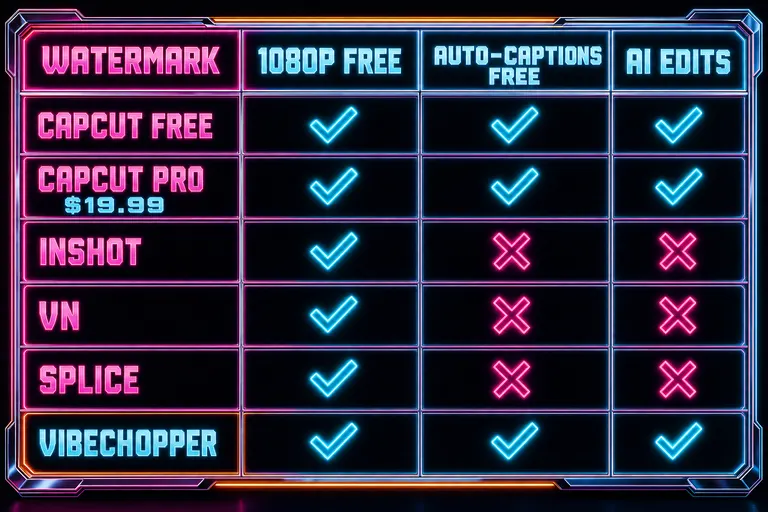
A neon decision matrix comparing CapCut Free, CapCut Pro $19.99, InShot, VN, Splice, and VibeChopper across watermark, 1080p, auto-captions, AI editing
4. The honest "VibeChopper isn't for everyone" caveat
Most comparison posts have a fake-honesty section near the end where the "drawbacks" turn out to be "it's so powerful it might be too good for casual users." That's marketing dressed up.
Here's real honest. Use this as permission to not pick VibeChopper.
Don't pick VibeChopper if:
- You shoot exclusively on your phone, every edit is under 60 seconds, and the longest you've ever spent on a single video is 15 minutes. You're not bottlenecked by your editor. InShot is fine. CapCut Lite is fine. Go in peace.
- Your identity as a creator is built on a specific CapCut template with CapCut-only effects. Migrating that template costs you the look. Either pay the $19.99 or accept you're rebuilding from scratch. There's no clean swap.
- You want truly free, forever, no credits, no subscription. That's VN. Use VN.
- You hate AI in your edit, on principle. I respect that. VibeChopper bets AI handles the boring 80% so you obsess over the 20% — but if that bet feels wrong, this isn't your tool.
- You're editing a multi-cam documentary, a color-graded feature, or a 90-minute podcast with three speakers and a guest. You want Resolve or Premiere. Read the Adobe Premiere Pro vs the rest in 2026 post — it's honest about when the heavy NLE is right.
If none of those describe you, keep reading. The next section is the migration mechanics, the part almost every "I'm switching" post skips.
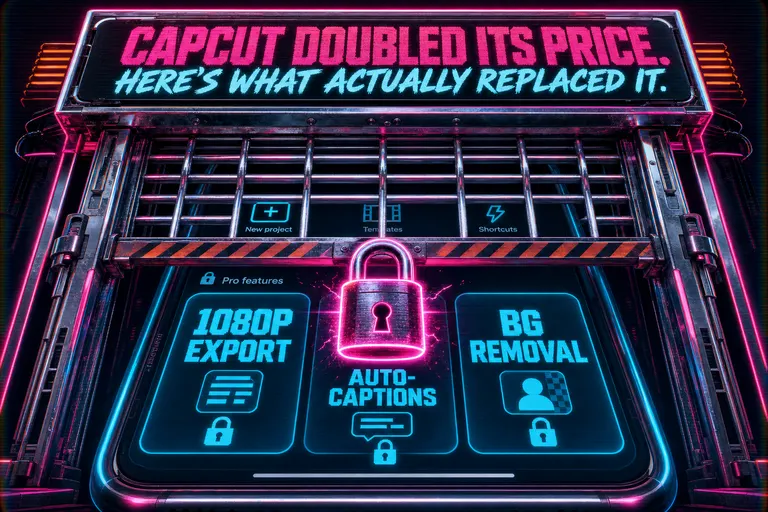
A retro arcade gate slamming shut across a glowing CapCut interface, the locked features hovering behind chrome bars
5. Migration mechanics — exports, archives, and getting it into the new tool
The hardest part of switching editors isn't picking the new one. It's the cardboard-box-and-tape-gun part: getting your stuff out before you cancel. Import your CapCut project
Three passes.
Pass 1 — Export your masters before you cancel
For every project you might revisit, export a master file at the highest resolution your current plan allows. Pro user before renewal hits? Export at 1080p or 4K now. On free? Export at whatever it permits. Walk out with the finished cut in a format every other editor reads.
Recommended master format: MP4, H.264, audio embedded. Lingua franca.
If you have CapCut Cloud projects, download them locally. The late-January outage is a data point, not a guarantee. Local files are insurance.
Pass 2 — Archive your raw assets
Masters are finished work. Raw clips, audio files, music, and project files are what lets you re-edit later.
Make a folder. Call it CAPCUT-ARCHIVE-2026/. Put the raw clips, music, voiceover takes, title PNGs, and the .capcut project file (even though other editors can't open it directly) inside. Upload to cloud storage.
This is the boring step every "I switched editors" YouTube post forgets. Do it.
Pass 3 — Import to the new tool
- InShot, VN, CapCut Lite, Splice — mobile-first editors. They take your master MP4 and raw clips through standard mobile imports (camera roll, files app, cloud picker). No project-import magic. You're rebuilding from raw clips. Plan accordingly.
- VibeChopper — drop your master MP4 and your raw clips folder into batch upload. We re-ingest the master so the AI has a reference for the finished cut's pacing, music, captions. Then we describe every frame of the raw clips so when you say "find the part where she laughs," it's searchable.
What VibeChopper does not do: read a .capcut project file directly. Nobody outside CapCut does — it's a closed format. The migration path is master + raw clips, not project-to-project.
Safe sequence:
1. Export master at highest resolution allowed. 2. Archive raw clips, audio, and project file to local + cloud. 3. Open the new tool. Re-import raw clips. Rebuild using the master as reference. 4. Then cancel CapCut.
The renewal cliff was February 20, 2026. That's a deadline, not an emergency. Take the week.
::
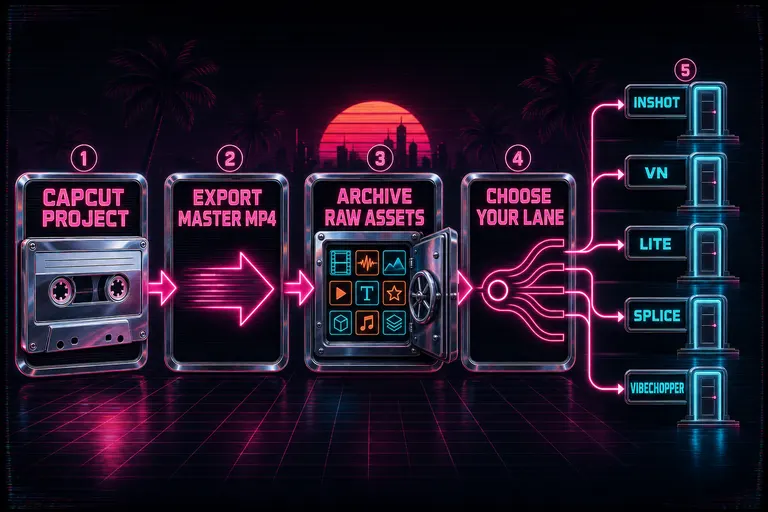
A flow diagram from a chrome CapCut cassette through an export step and asset archive into five exit doors labeled with each replacement
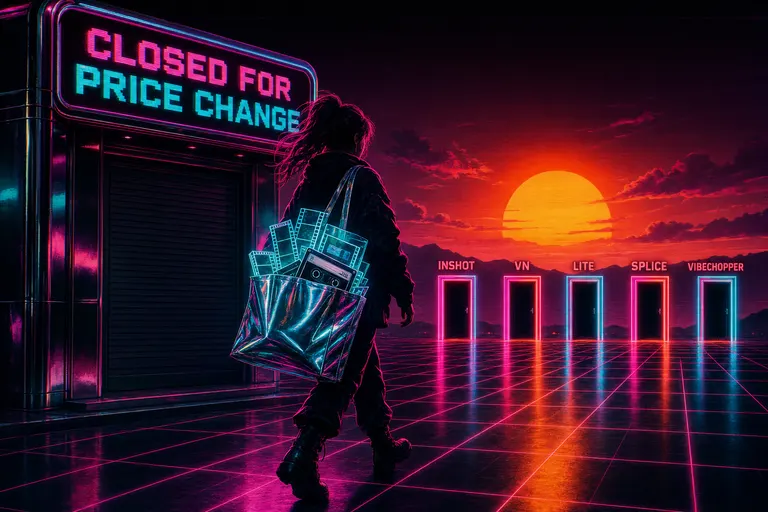
A creator with a tote bag walking out of a chrome CapCut storefront under a sunset, carrying her raw assets toward five neon doorways
6. Decision matrix — pick by use case
Find your shape. Pick the tool.
- "Three Reels a week, under 90 seconds, vertical, mobile-only." → InShot for cheapest-and-simplest. VN if you want free-with-no-watermark.
- "Podcast clips, caption-heavy, talking-head." → VibeChopper for first-cut and caption-by-transcript. Descript for transcript-edits-the-video specifically — Descript vs VibeChopper if that's your lane.
- "Action-cam, sports, travel, GoPro-style." → Splice. Closest emotional fit.
- "Keep my CapCut muscle memory, stop paying $19.99/mo." → CapCut Lite, with eyes open about the 15-minute cap and ByteDance.
- "AI does the first hour so I focus on storytelling." → VibeChopper. The bet we made.
- "Multi-cam YouTube show with three speakers, a guest, color-graded." → none of these. Premiere or DaVinci Resolve. Stay heavy.
- "No idea what I'm doing, just want to learn." → VN. Free, no watermark, teaches the shape of a real timeline without paywalling the next step.
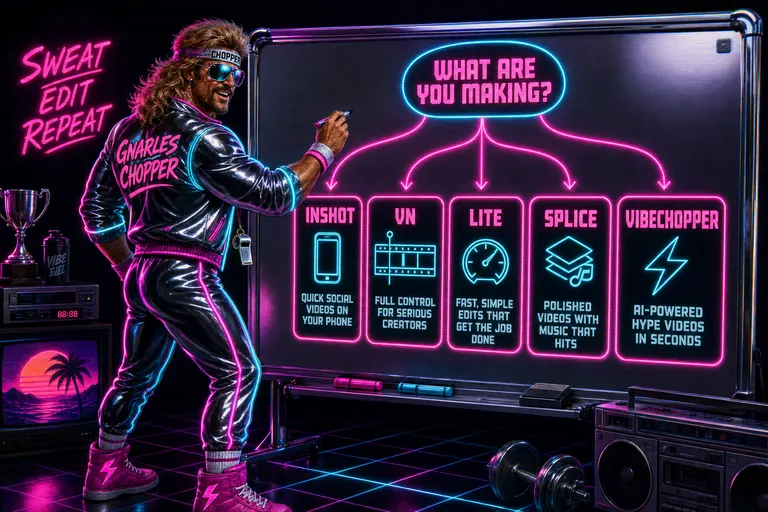
Gnarles Chopper standing at a chrome whiteboard with five tool names and a decision tree of who each is for
7. The week-one workflow on each tool
Most migrations die in week one. You miss CapCut, you don't know where the music library is, you bail. Here's a one-week shape per tool.
InShot. Day 1, import your CapCut master as reference and rebuild one 30-second Reel from raw clips. Day 2-3, rebuild two more — the gesture language ports fast. Day 4-5, if three Reels look right, buy the $20 lifetime, don't subscribe monthly. Day 6-7, save your caption style as a preset.
VN. Day 1, spend 30 minutes finding keyframes, audio mixer, export — make a junk project to click everything. Day 2-3, rebuild one Reel; the absence of templates feels like cold water for ten minutes and then like relief. Day 4-5, try the keyframing and audio control — this is the part CapCut charges $19.99 to match. Day 6-7, ship a finished video. Notice: no watermark.
CapCut Lite. Day 1, sign in with your existing account. Day 2-3, rebuild one short Reel inside the 15-minute cap and 1 GB upload limit. Day 4-7, decide whether the muscle-memory savings are worth the ByteDance lock-in question. If no, switch to VN.
Splice. Day 1, import action-cam footage, set up a vertical project. Day 2-3, use beat-sync — this is where Splice's identity lives. Day 4-5, build a reusable templated transition. Day 6-7, watch for the auto-subtitles drop on Splice's 2026 roadmap — it closes a real gap versus CapCut Pro.
VibeChopper. Day 1, drop your master MP4 and raw clips folder into batch upload. Walk away. Make dinner. Come back to every frame described and every audio file transcribed. Day 2, open the chat: "Find the moments where she laughs." Watch the AI pull the clips. Day 3, "Cut a 60-second teaser from the best moments and add a lower-third on the founder." First cut lands on the timeline. Day 4, second pass: "Tighten the dead air. Add a soft cross-dissolve between scenes." Day 5, share a preview link without exporting, apply client notes in chat. Day 6-7, export. The slowest part of the week was your dinner.
The wrong answer is keeping a renewal you don't want.
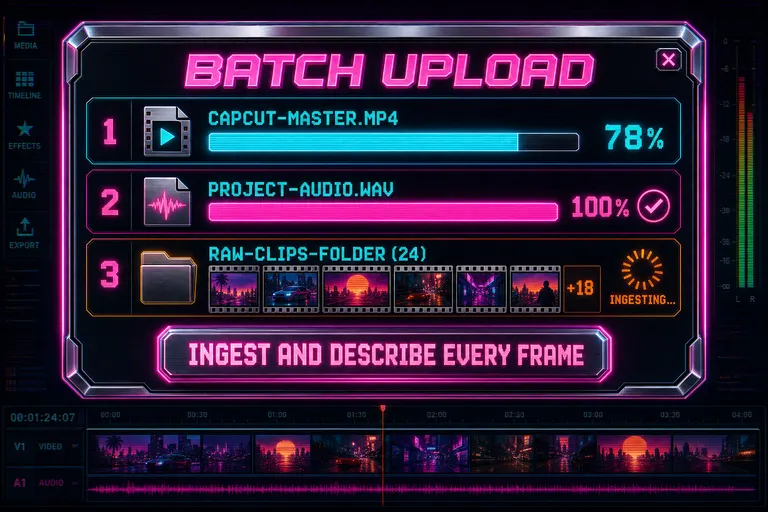
A stylized VibeChopper batch-upload dialog mid-process showing a CapCut master export, an audio sidecar, and a folder of raw clips being ingested
A last note on the news cycle
CapCut's price hike isn't unique. Every editing tool of any size is restructuring pricing in 2026 and paywalling AI features that used to be loss-leaders. Adobe Premiere is $19.99 to $34.49/mo. Descript is $24/mo. Free tiers everywhere are thinner.
We built VibeChopper partly because the answer wasn't more subscriptions — it was a tool you use when you have something to ship, with a marketplace for the credits-based parts, and no monthly renewal cliff. The Adobe Premiere pricing math post has the longer argument.
For now: get your masters out. Archive your raw clips. Pick one of the five. Build one Reel on it this weekend. Every day you stay on a CapCut Pro subscription you don't want is a day you're paying for nostalgia.
I respect what CapCut built. The templates were good. The mobile UI was good. The free tier was good. The price hike is a real wedge, and you don't have to feel bad about leaving over it. Editors are tools. Tools serve you.
If you want the platform-side companion read about ByteDance owning both your editor and your distribution, A TikTok-Native Workflow When You Don't Trust CapCut Anymore covers it. For an Instagram stack, The Honest Instagram Reels Editor Stack for 2026. And for the long honest list — built by someone who admits up front they made one of these — The Best AI Tools for Video Creators in 2026.
You shot the footage. You earned the audience. The editor is a cassette, not a marriage. Eject when the price stops making sense.
See you on the timeline.
— Gnarles
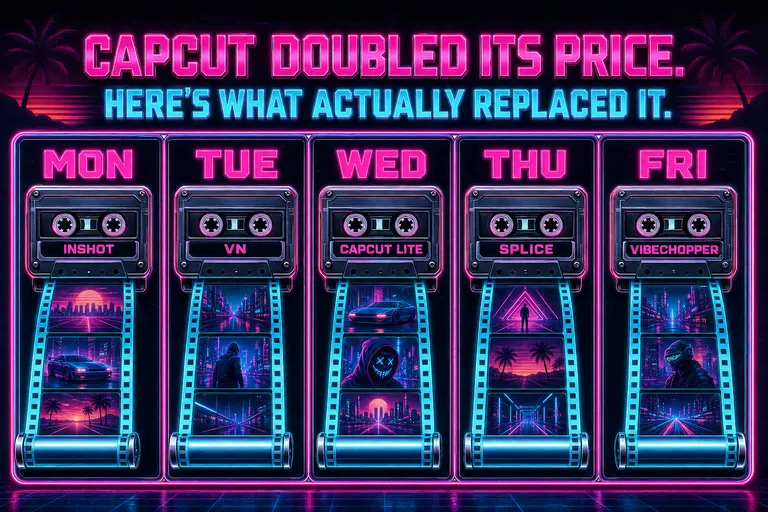
A neon weekly calendar with five day-cells, each showing a different tool's icon and a tiny finished reel rolling out
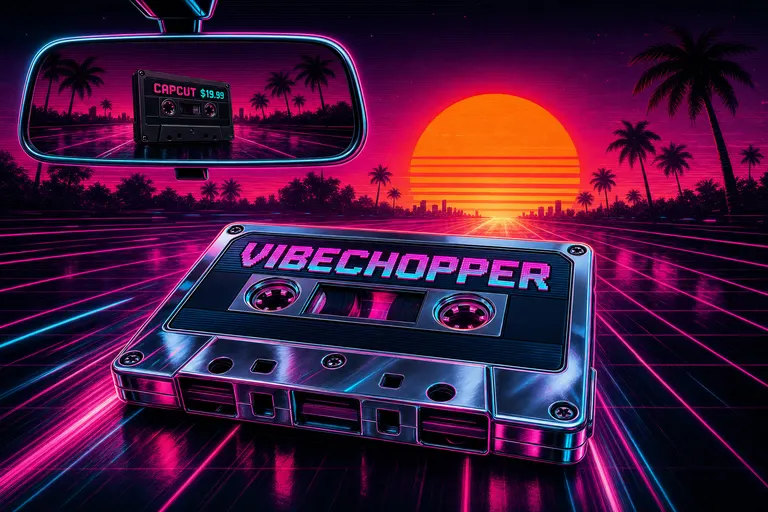
A chrome cassette labeled VIBECHOPPER riding into a sunset over palm-tree silhouettes, the CapCut cassette small and dark in the rearview
Try the workflow
Open every feature from this post in the editor
These panels collect the features discussed above. Sign in once, finish your profile if needed, then the editor opens the first highlighted surface and walks through the tutorial.
Step 1
See where VibeChopper fits
Read the short version of why we built it — chat-first, frame-described, no monthly surprise.
Get your power back →Step 2
Import your CapCut project
Drop your master export and your raw clips folder. We describe every frame and prep the timeline before you open it.
Import your CapCut project →