
Effects Are Render Contracts
A clip effect looks simple from the editor. Select a clip, add blur, lift brightness, pull saturation down, adjust opacity, or let an AI instruction do the same thing from a prompt. The timeline updates. The preview changes. The creator keeps cutting. That is the product experience VibeChopper wants: edit videos with natural language, but keep the result precise enough for a professional timeline. Try the effects pass
The compositor has a stricter job. It cannot treat the effect as a decorative UI state. Every effect that appears on a clip is a render contract. If the clip has a blur pass in the timeline, the exported video has to run the matching filter over the correct frames. If opacity changes, the compositor has to preserve the correct alpha behavior during overlay. If brightness, contrast, or saturation are set, the color pass has to land in a stable order relative to scaling, trimming, and timing.
The evidence path for this post is tests/videoCompositorEffects.test.ts, referenced in the developer audit with commit 0813646. The test file matters because clip effects are exactly the kind of feature that can look correct in one preview path and disappear in a server render. VibeChopper avoids that split by making effect compilation testable. Timeline effect input becomes a deterministic FFmpeg filter graph, and focused tests assert the filter fragments that must be present.
That is the engineering posture behind this feature. Effects are creative controls at the surface and typed render instructions underneath. The UI can stay approachable. The render path stays explicit.
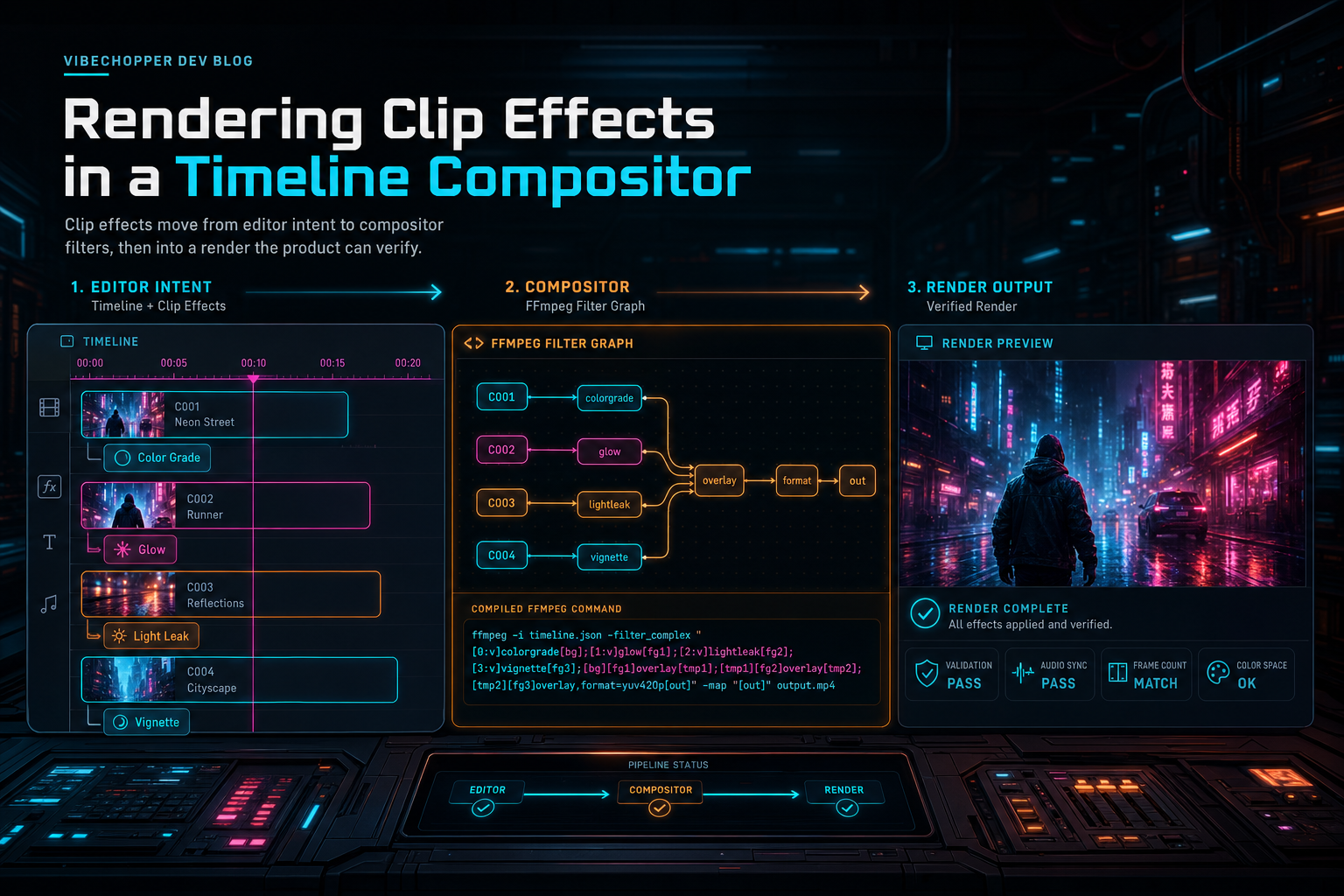
Clip effects move from editor intent to compositor filters, then into a render the product can verify.
Structured Input Before Filter Strings
The first rule is to keep effects structured as long as possible. A compositor should not accept a raw filter string from the client and hope every caller escaped it correctly. It should receive clip records with bounded settings: source range, timeline placement, dimensions, effect values, transform values, track identity, and media references. From there, the server owns the translation into FFmpeg filters.
That boundary protects both security and product consistency. The editor can expose friendly controls, AI tools can update clip properties, and the server can still decide what an allowed blur range means, how opacity maps to alpha, how color values map into eq, and when a missing value means default behavior. The client asks for an effect. The compositor compiles the allowed effect.
It also makes AI editing less fragile. A natural-language instruction like make the reaction shot softer should not become arbitrary shell text. It should become a timeline mutation against a known clip field. The same is true for make the B-roll warmer, fade this clip under the title, or brighten the opening. Once the AI command resolves to structured clip state, the render system can use the exact same path as a manual UI edit.
This is a recurring pattern across VibeChopper. The provider harness can produce JSON, but route boundaries validate. The AI edit harness can plan tool calls, but storage services own the durable records. The compositor can use FFmpeg, but it does so through server-side builders that control the graph shape. Effects follow that same rule: expressive at the product layer, constrained at the rendering boundary.
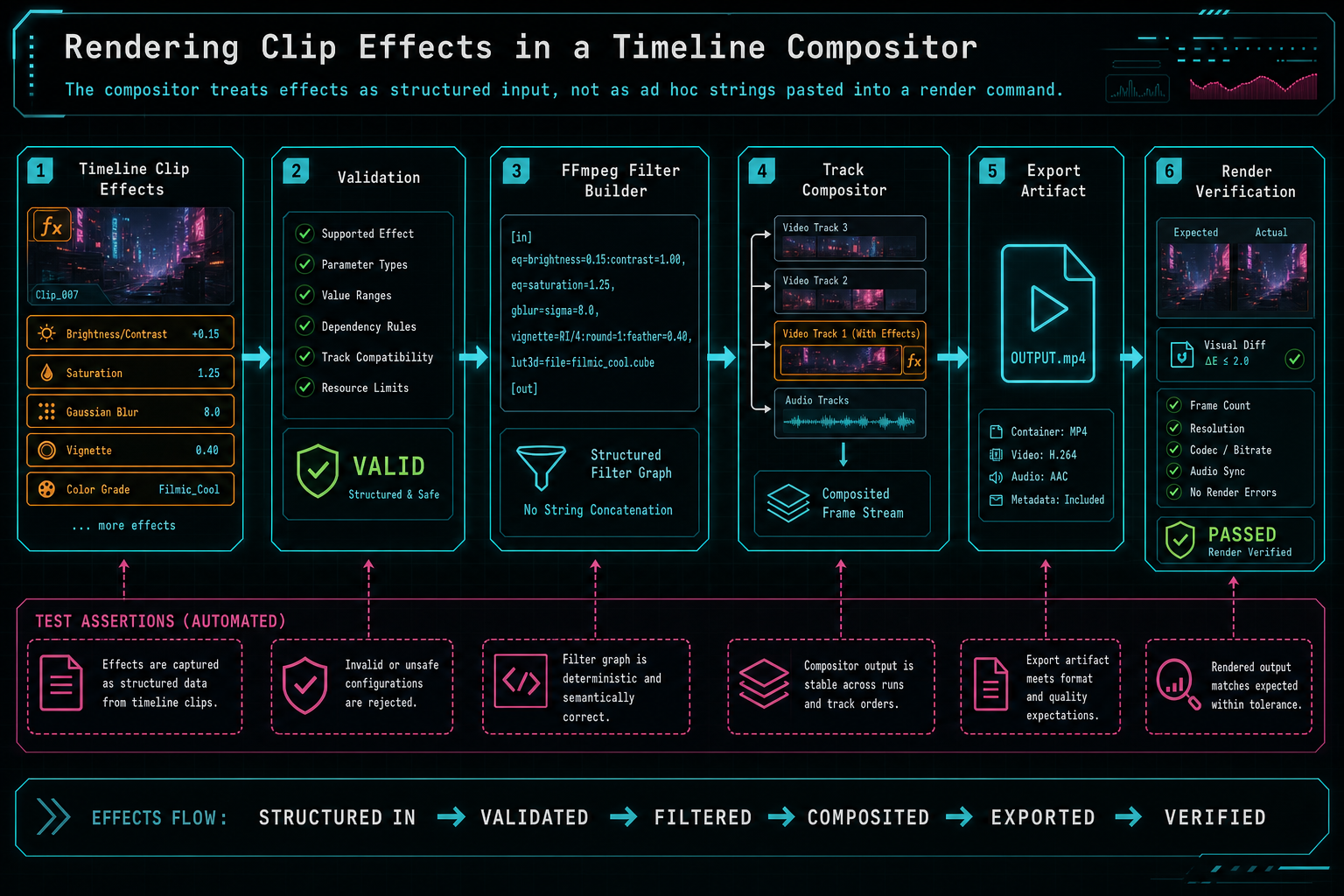
The compositor treats effects as structured input, not as ad hoc strings pasted into a render command.
The Effect Stack
VibeChopper thinks about clip effects as a stack that belongs to a clip, not as a global post-processing pass. That distinction matters. A creator may want one source clip blurred for privacy, another brightened for clarity, and a third made semi-transparent over a background plate. The compositor has to apply each stack to the right source media and only over the clip's active timeline span. Try the effects pass
A practical effect stack starts with values the product can explain. Blur is a visual softness control. Brightness, contrast, and saturation are color controls. Opacity controls compositing strength. Speed and timing controls affect duration and timestamps. Motion and crop controls affect geometry. Each setting has user-facing language, but the server representation needs numeric bounds and defaults.
The selected-clip UI is intentionally creator-friendly. It can show controls, badges, reset states, and preview updates without requiring the user to think about filter syntax. The render path, however, only cares about clean data. Does this clip have blur? What amount? Is opacity less than full strength? Are color effects at default? Is this a video clip or an audio clip? Which track is it on? Where does it start and end in the final timeline?
When an AI edit run changes effects, tool events make that mutation inspectable. The user can see that the assistant applied a soft blur to a clip or adjusted color to match a requested vibe. That event is not the render itself, but it is part of the trail. The compositor later consumes the resulting timeline state, while render verification can connect the final artifact back to the edited project.
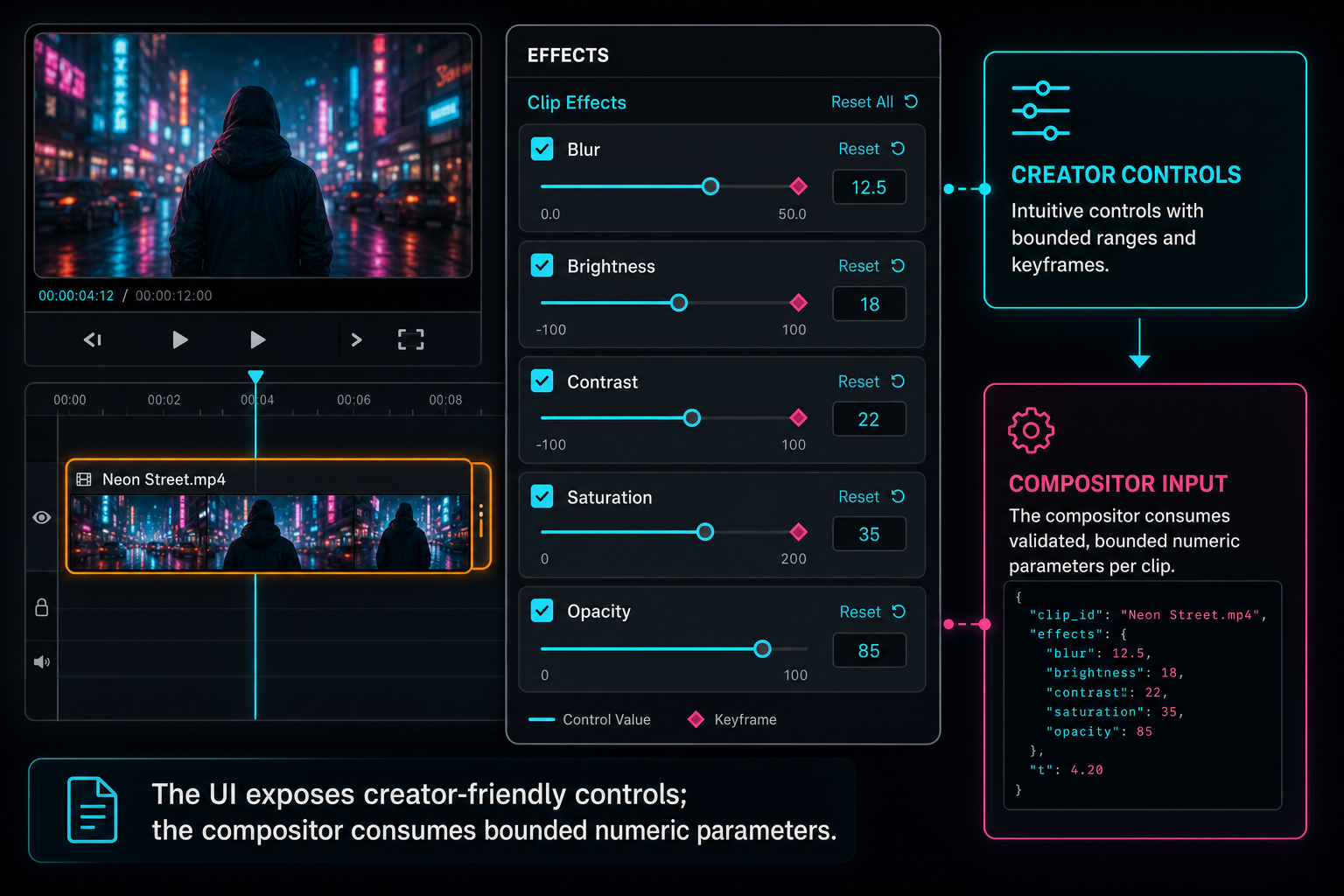
The UI exposes creator-friendly controls; the compositor consumes bounded numeric parameters.
Filter Order Is Product Behavior
In a timeline compositor, filter order is not an implementation detail. It is product behavior. Trimming before or after speed changes can alter timing. Scaling before blur can change perceived softness. Opacity has to happen before overlay composition if the clip is layered over another track. Color corrections need a stable place so preview and export do not diverge.
A typical video clip render path has several phases. First, the source segment is selected from the media file. Then timestamps are reset so the clip can be placed correctly on the output timeline. Geometry is normalized for the target canvas. Clip-local visual effects run over that normalized stream. Alpha or opacity adjustments prepare the clip for layering. Finally, tracks are overlaid or composed into the final frame.
The exact filter fragments can vary by effect set, but the principle stays constant: timing, geometry, visual effects, alpha, and composition should each have a defined lane. When that order is stable, tests can assert it. When tests can assert it, future changes can add effects without guessing whether they broke existing render behavior.
This is especially important for multi-track editing. A single-track export can hide mistakes because the clip fills the whole output. Layered edits reveal them. A semi-transparent clip over a background, a blurred privacy mask, a picture-in-picture element, or a color-adjusted insert all depend on the compositor applying local effects before final overlay. If the filter order drifts, the output can still be a valid video file while being creatively wrong.
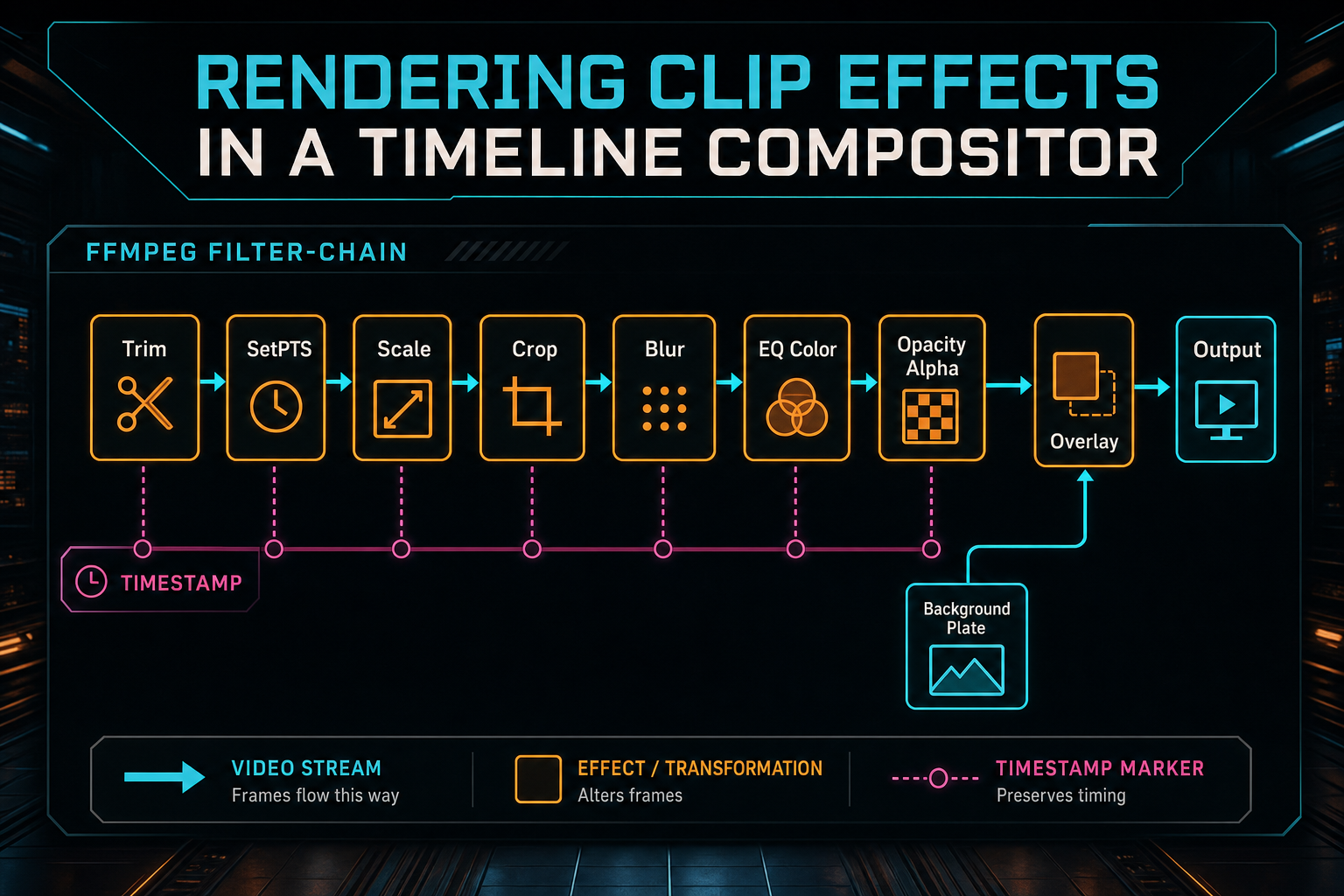
Filter order is part of the contract. Timing, geometry, color, alpha, and overlay composition each have a stable place.
Determinism Beats Visual Luck
Video rendering has a tempting failure mode: run the export, look at it once, and call the feature done. That is not enough for clip effects. A tiny filter omission can be missed in a casual visual check. A filter can work for one clip length but break when a trim shifts timestamps. An effect can render in a local preview but disappear from the server command. VibeChopper uses deterministic tests because the graph itself is part of the product contract. Render a timeline free
tests/videoCompositorEffects.test.ts gives the feature a focused guardrail. The point of the test is not to render a full movie for every assertion. The point is to verify that timeline effect state compiles into the FFmpeg filter fragments the compositor is expected to emit. That kind of test is fast, direct, and narrow enough to catch regressions close to the code that creates them.
This style of coverage is also easier to maintain than screenshot-only validation. Screenshot checks are valuable at the product level, especially for preview parity and visual inspection, but they are often expensive and noisy. Filter graph assertions are precise. If blur should create a blur filter, if color settings should create an eq pass, if opacity should create alpha behavior, the test can say so directly.
Determinism does not remove the need for final render verification. It complements it. Effect tests prove that the compositor compiled the intended graph. Render verification proves that the export artifact was produced, stored, and connected back to the project. Together they cover two different questions: did we ask FFmpeg to do the right work, and did the resulting file become a durable product artifact?
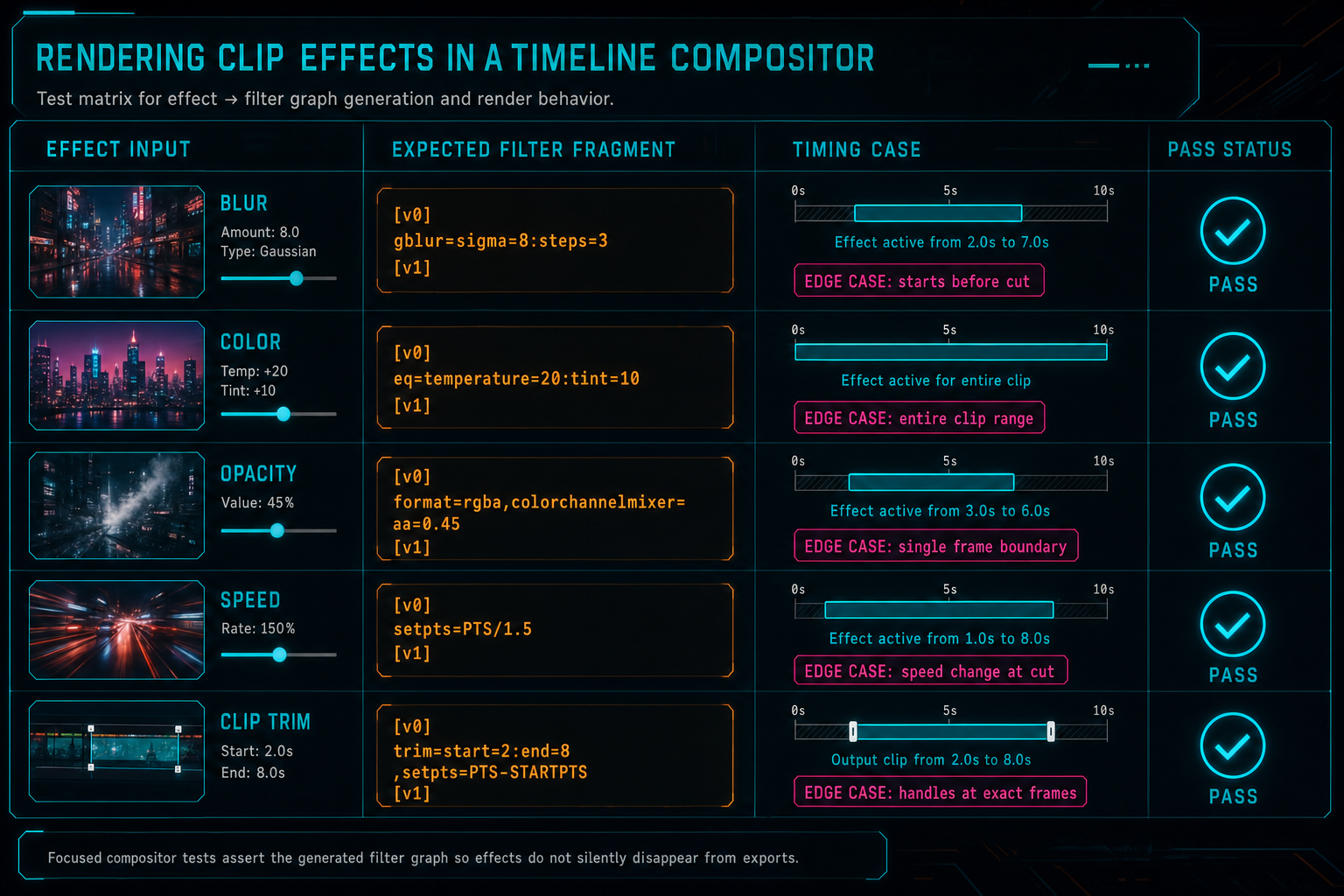
Focused compositor tests assert the generated filter graph so effects do not silently disappear from exports.
Preview-Export Parity
Creators judge an editor by whether the exported video matches what they saw while editing. Preview-export parity is not glamorous, but it is the trust line for a video product. If a blur appears in the browser preview but not in the cloud render, the creator does not care that both subsystems had reasonable internal explanations. The product broke the promise.
VibeChopper keeps the promise by making preview state and render state converge on the same timeline model. The browser can use Web APIs, CSS, canvas, or player-layer behavior to make editing feel fast. The server can use FFmpeg to produce durable output. Those paths do not have to share every implementation detail, but they do have to share the same source of truth for clips, timing, tracks, and effect values.
That shared model is what lets natural-language edits stay honest. A user can say add a soft blur to the background clip, and the AI tool can update the selected clip's effect fields. The preview path responds immediately. The compositor later compiles the same fields into filters. The AI edit run can show the mutation. The render artifact can be verified after export. The feature feels fluid because the internal state is disciplined.
There is a design lesson here for browser-first editors. Do not let preview-only conveniences become invisible product state. Anything that changes the final video needs a canonical representation outside the preview component. Otherwise export becomes an archaeological dig through UI behavior.
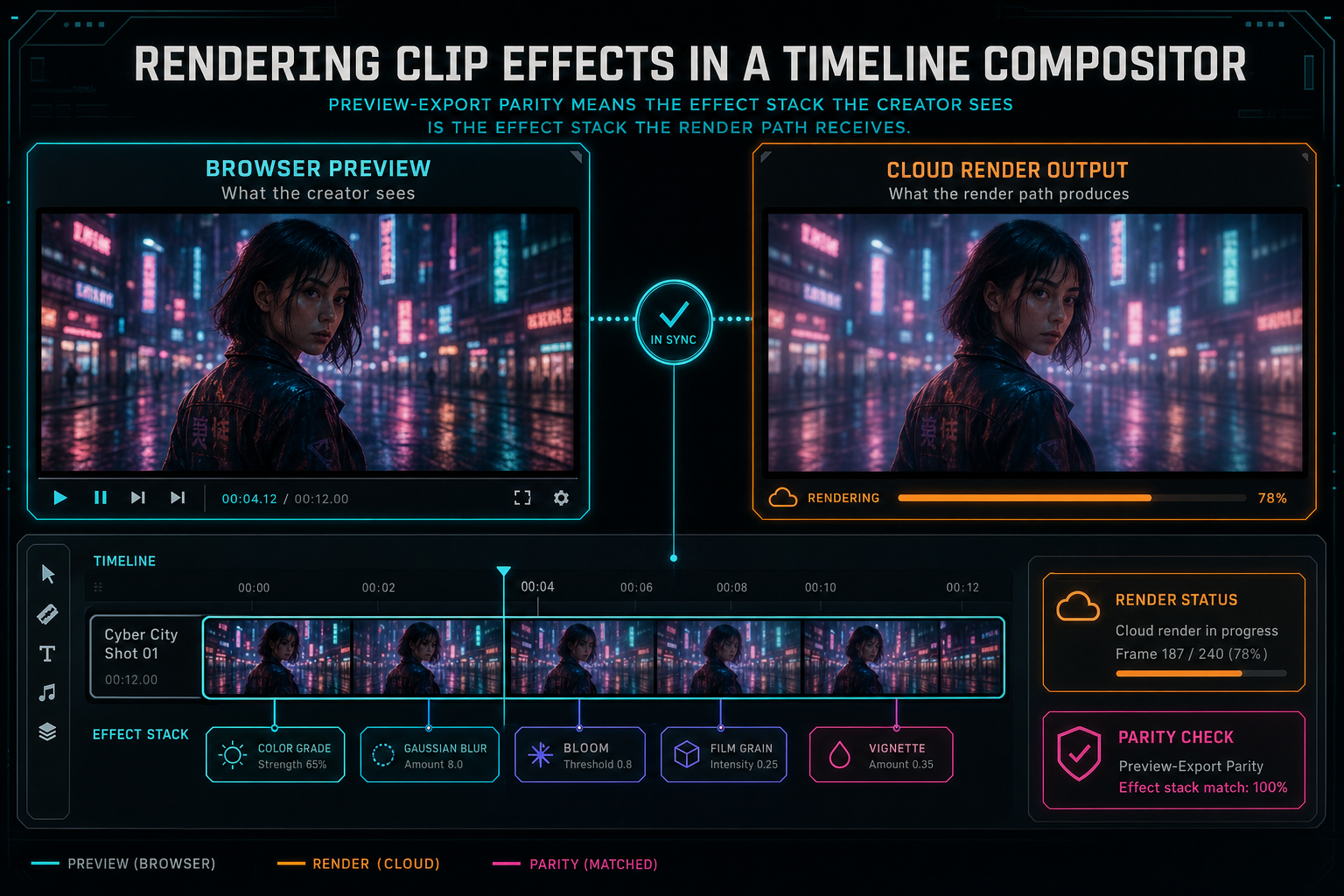
Preview-export parity means the effect stack the creator sees is the effect stack the render path receives.
Edge Cases That Shape the Compositor
Clip effects become interesting at the edges. A clip can start later than the source media. It can be trimmed to a short range. It can sit above another clip on a higher track. It can have opacity below one. It can be audio-only, video-only, muted, cropped, resized, or stretched. A robust compositor does not treat those as rare surprises. They are normal timeline states.
Timing is the first edge. The source range and timeline range are different concepts. Source start tells FFmpeg where to read from the media file. Timeline start tells the compositor where the processed clip belongs in the final output. If those are mixed up, effects can appear at the wrong moment or clips can drift out of sync. Resetting timestamps after trimming is one of the small but essential moves in a compositor graph.
Layering is the second edge. Opacity and overlay order only matter when there is something underneath. Multi-track composition has to respect track order and clip timing so that an upper clip overlays the correct lower content. Effects belong to the local clip stream before that overlay happens. A blur on the upper clip should not blur the whole canvas unless the product explicitly asks for that.
Defaults are the third edge. Most clips do not need every effect. The compositor should avoid adding no-op filters just because fields exist. Default brightness, contrast, saturation, opacity, and blur values should compile to the simplest valid graph. That keeps render commands easier to inspect and reduces the surface area for FFmpeg differences across environments.
AI Editing Needs Effect Provenance
Effects are not only manual controls. In VibeChopper, AI edit runs can apply timeline changes from natural language instructions. That means effect changes need the same provenance posture as trims, splits, overlays, generated music, and renders. The system should be able to answer who or what changed the clip, which prompt caused it, which tool event recorded it, and whether the export later included it. Open the edit-run receipts
This matters because visual effects often encode creative intent. Warm up the product shot, blur the license plate, make the overlay subtle, or add punch to the intro are not generic operations. They are decisions. When an AI assistant makes those decisions, the product should keep a trail that a user can inspect and adjust.
The compositor is downstream of that trail. It does not need to know the full conversation that created an effect. It needs the resolved clip state. Other systems keep the explanation: AI edit runs, tool events, plan assets, media summaries, and render verification. That separation lets the compositor stay deterministic while the broader platform remains explainable.
The media graph CTA belongs here because final video artifacts often depend on many inputs: source footage, generated audio, overlays, effect-bearing clips, and export records. Effects are not files, but they are still part of asset lineage. A project that can explain its generated media but not its effect decisions is only telling part of the story.
What Developers Should Copy
If you are building a video editor, copy the boundary. Keep effect state structured in your timeline model. Validate values before the render command is built. Compile effects server-side into a deterministic graph. Put filter order under test. Treat preview and export as two implementations of the same timeline state, not as two unrelated products.
Also copy the humility. A filter graph test does not prove the final video is beautiful. It proves the compositor asked for the intended operation. Render verification does not prove every frame matches the user's imagination. It proves the output artifact exists, is stored, and is connected to the timeline. Strong creative tools are built from these narrower guarantees stacked together.
Be careful with raw power features. FFmpeg can do nearly anything, which is exactly why a product should not expose arbitrary filter syntax as its main contract. Most creators need reliable controls, not a command-line escape hatch. Most AI tools need bounded mutations, not permission to invent render expressions. A small, typed effect vocabulary can cover a lot of useful editing while staying testable.
Finally, design for future effects. Blur, color, and opacity are only the beginning. Speed ramps, masks, background removal, LUTs, captions, generated overlays, and audio effects all benefit from the same architecture. The exact filters change. The discipline does not.
The Result
Rendering clip effects in a timeline compositor is not about making FFmpeg look clever. It is about keeping the product promise intact. A creator changes the look of a clip. The timeline records that change. The preview shows it. The compositor compiles it. Tests guard the graph. The export becomes a durable artifact. The AI edit run and media graph can explain how the project got there. Try the effects pass
That chain is what makes effects feel native in VibeChopper. The user does not have to think about filter graphs, timestamps, alpha channels, or object paths. They can describe the edit, adjust the clip, and render the result. Underneath, the system treats each effect as structured intent that must survive the full path from timeline to final video.
The most important lesson is boring in the best way: deterministic render systems make creative tools feel trustworthy. When clip effects compile predictably, preview and export stay aligned. When tests watch the filter graph, regressions show up early. When render verification records the final artifact, the product can tell the user what finished. That is how a video editor earns confidence while still moving at the speed of a voice prompt.
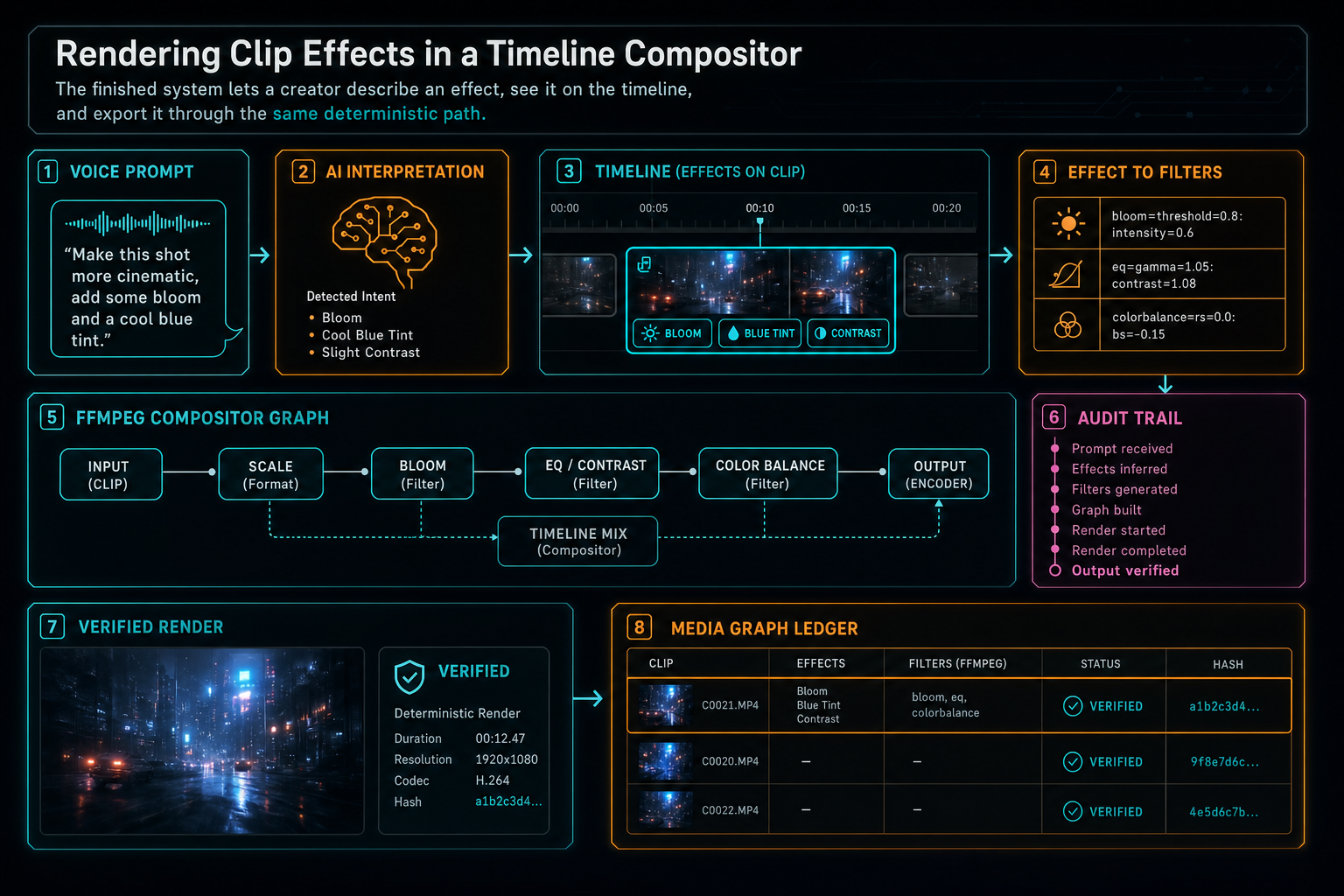
The finished system lets a creator describe an effect, see it on the timeline, and export it through the same deterministic path.
Try the workflow
Open every feature from this post in the editor
These panels collect the features discussed above. Sign in once, finish your profile if needed, then the editor opens the first highlighted surface and walks through the tutorial.
Step 1
Apply timeline effects
Try clip effects, speed ramps, color passes, and export-ready compositor behavior.
Try the effects pass →Step 2
Inspect an AI edit run
Open the editor and see how plans, tool calls, artifacts, and render results stay connected.
Open the edit-run receipts →Step 3
Render a verified timeline
Export a project through the same storage-backed render path described in this article.
Render a timeline free →Step 4
Open the media asset graph
See generated audio, rendered assets, source clips, metadata, and provenance in the media panel.
Explore your media graph →