
Media State Is Product State
A video editor can hide a lot behind the word processing. Uploading is processing. Extracting frames is processing. Analyzing those frames with an AI model is processing. Pulling audio, transcribing dialogue, generating title and description metadata, creating proxies, rendering exports, attaching plan assets, and repairing failed work are all processing too. If each step reports progress in its own little corner, the product eventually loses the plot. Explore your media graph
VibeChopper's answer is a durable project-scoped media processing summary. It is not a loading spinner. It is not a temporary client object. It is a server-built view that joins the records the editor already trusts: upload sessions, upload session videos, matched project video rows, frame records, transcript segments, processing jobs, readiness checks, export records, and project plan assets. The summary is what lets the media panel say what exists, what is missing, what is still running, and what can be repaired.
The implementation evidence is server/mediaProcessingSummary.ts, introduced in audit commit 5790f80. The module defines media processing job status and kind types, creates and updates durable job rows, lists project jobs, summarizes each uploaded video against the canonical project video, and returns a single UploadProcessingSummary for a project. The surrounding product uses that summary as context for media panels, incident capture, AI edit runs, upload monitoring, and DATA remediation.
That sounds operational, but the user-facing result is simple. Open the editor. Upload footage. Watch the product keep track of original files, derived frames, AI descriptions, audio, transcripts, metadata, proxy status, exports, plan assets, and pending server work in one place. Edit videos with your voice based on vibes, but keep the underlying media state precise enough to survive refreshes, retries, and repairs.
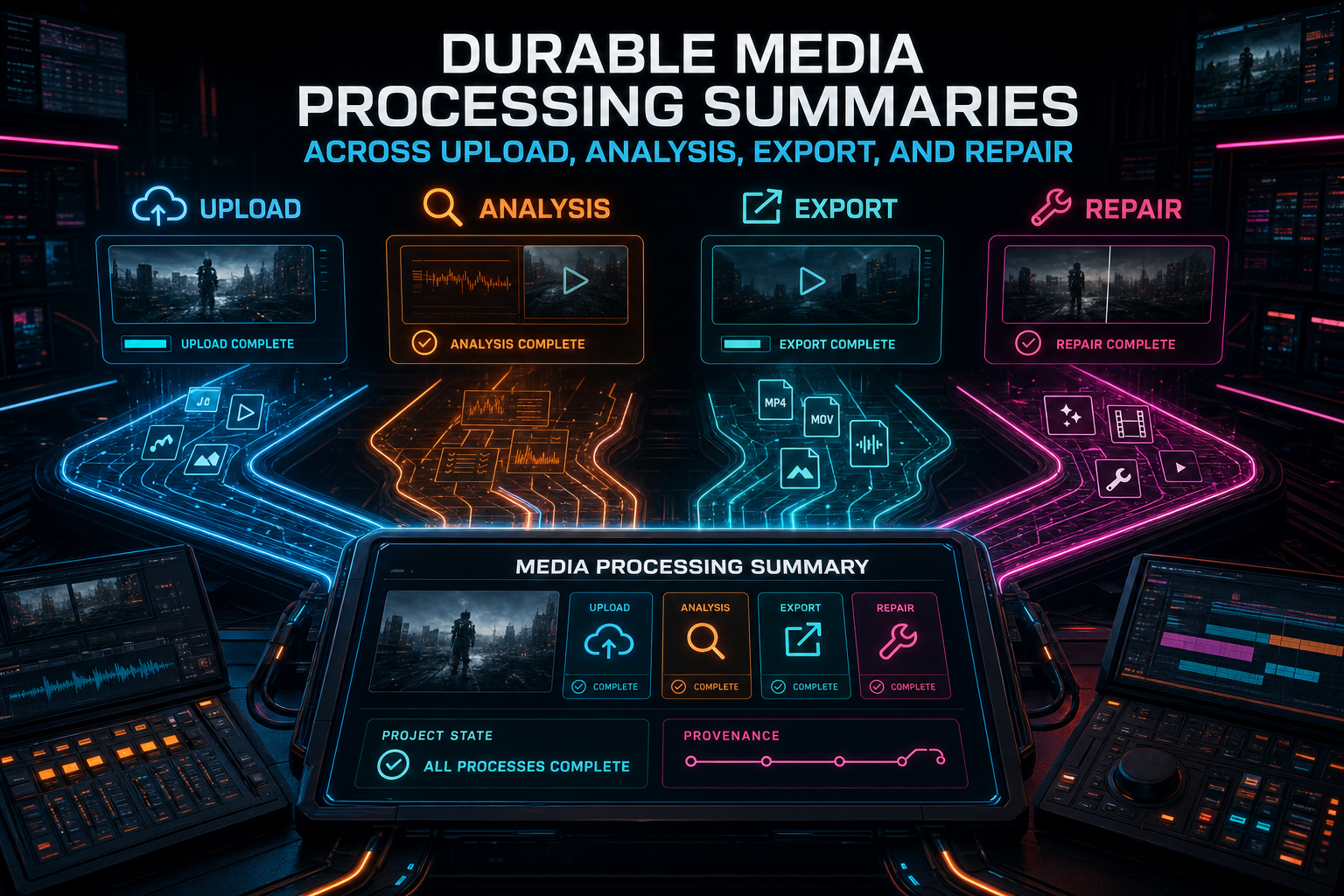
The summary is the product boundary where scattered media work becomes one readable project state.
One Summary, Many Sources
buildProjectUploadProcessingSummary starts with ownership. It calls storage.getAccessibleProjectById(userId, projectId) and returns a not-found or access-denied error when the project is not available to the current user. That matters because this summary can contain sensitive media state. It names files, storage paths, transcripts, generated metadata, export records, and plan assets. The first contract is that a summary belongs to a user-scoped project.
After that boundary, the function gathers the product records in parallel. It reads recent upload sessions for the project, fetches project videos, lists media processing jobs, computes project media readiness, reads recent project exports, and lists project plan assets. Upload sessions default to active, paused, and error states, with options to include completed or stale sessions. Limits are clamped so a dashboard request cannot accidentally become an unbounded archive crawl.
Each upload session video is then matched to a project video. The matching logic prefers an explicit videoId; when that is absent, it falls back to file name plus original file size. That fallback is useful because media flows are not always born perfectly linked. A resumable upload, a refresh, or a repair path may have enough evidence to connect a session row back to the durable video record even if the direct pointer was not written in the first pass.
The result is a summary that does not depend on one worker's memory. It is assembled from stored facts. That distinction is the difference between an upload progress UI and a project media truth layer. Progress says what one action is doing now. A summary says what the project currently has and what work remains.
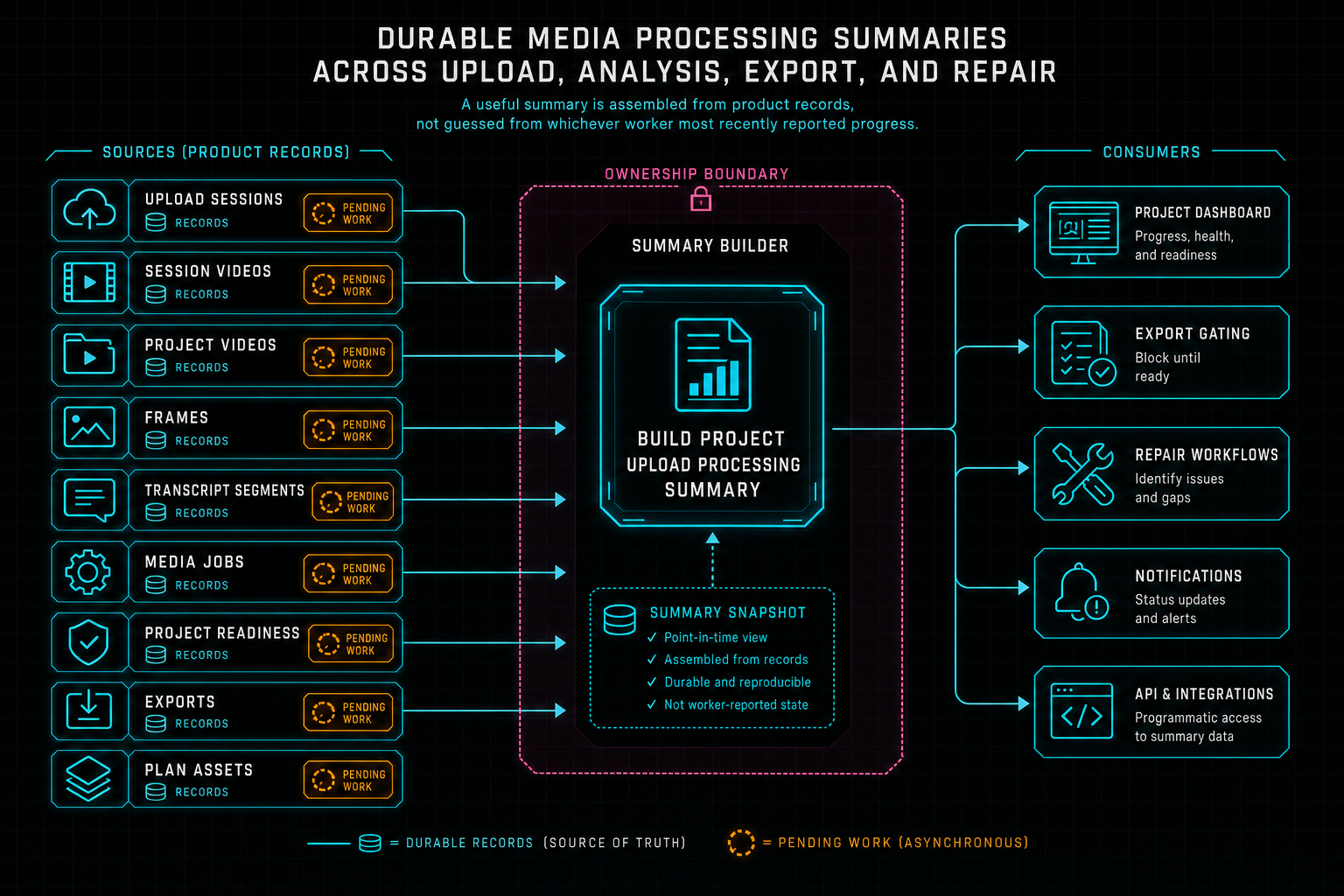
A useful summary is assembled from product records, not guessed from whichever worker most recently reported progress.
Video-Derived State
For every matched video, the summary separates original media from derived media. The original block reports status, bytes uploaded, file size, storage path, and content type. That gives the product a grounded answer to a basic question: is the source file actually there, and how much of it arrived? A video record with a title but no source object is not ready in the same way as a video with a completed or deduped original upload. Upload a real shoot
Derived state is more granular. Frames report row count, described count, status, and whether frames are missing. The status is complete only when frames exist and every frame has a valid AI description. It is processing when frames exist but descriptions are incomplete. It is missing when no frame rows exist. The helper explicitly filters out placeholder descriptions such as failed analysis strings, generic frame text, and unable-to-analyze messages. That keeps bad analysis from pretending to be useful media intelligence.
Audio and transcript state are also separate. A video can have an audio URL before transcript segments are complete. A transcript can be not applicable when there is no audio worth transcribing. Metadata gets its own status based on generated title and description fields. Proxy readiness is tracked separately through proxy status and proxy URL. Those distinctions are small, but they prevent the UI from flattening a real media pipeline into one ambiguous done flag.
The summary also computes pendingServerWork. Missing original upload, missing frames, incomplete frame analysis, pending audio, pending transcript, missing metadata, and incomplete proxy work are all named as separate pending items. That list is what lets the product guide users and repair systems toward the next useful action. If frames are complete but metadata is pending, the fix is not another frame extraction job. If audio is present but transcript work is pending, the product can retry transcription without touching the video source.
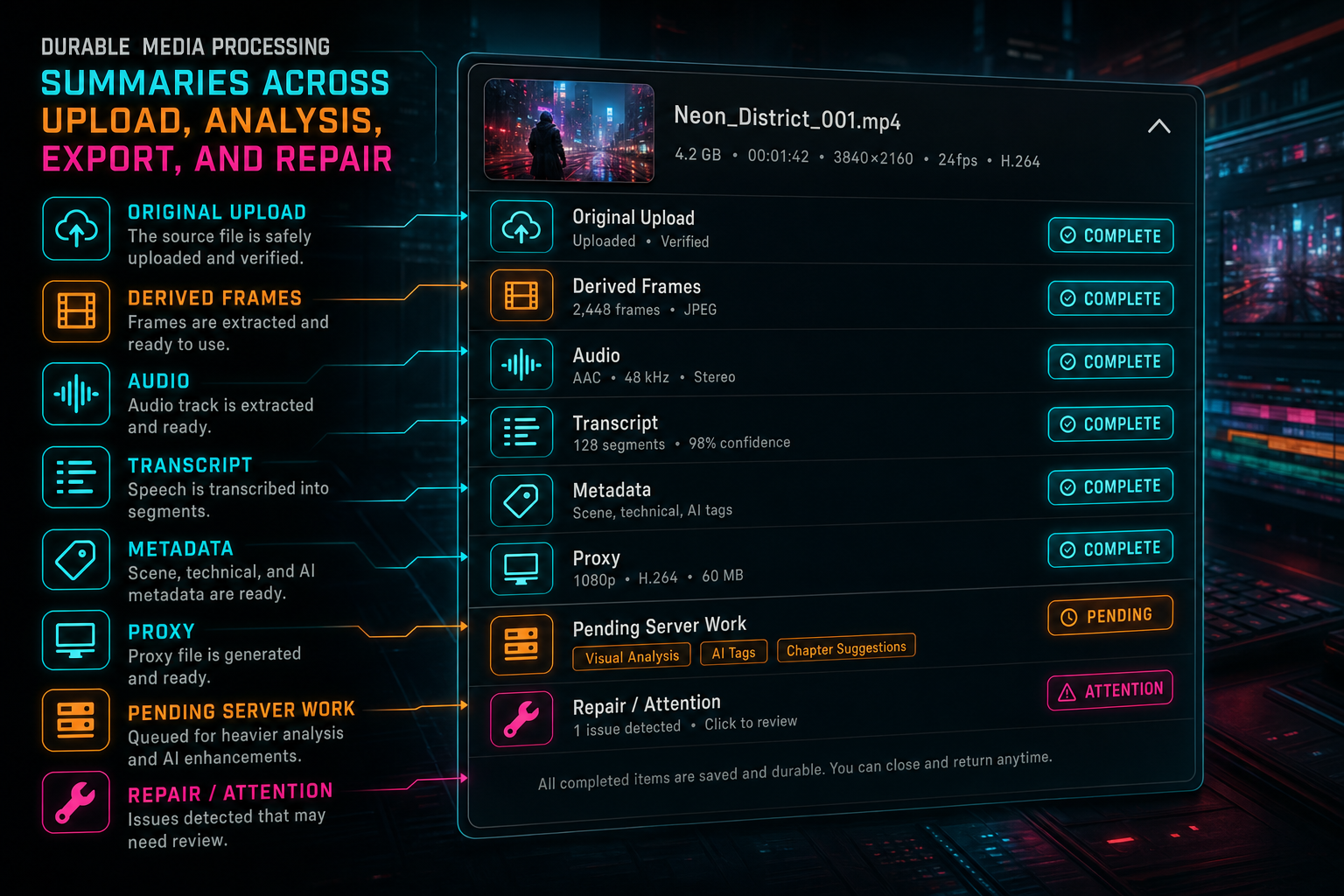
The media panel can show precise readiness because every derived stage has a named status.
Durable Job Rows
A summary is stronger when it can include active work, not just completed artifacts. mediaProcessingSummary.ts defines a media processing job shape with IDs for user, project, video, asset, and export, plus a job kind, status, progress, current step, error, metadata, started time, heartbeat time, completion time, creation time, and update time. The supported job kinds cover frames, frame analysis, audio, transcript, metadata, proxy, export, plan asset transcription, and repair.
The lifecycle is intentionally broad: queued, processing, completed, failed, canceled, and stale. That vocabulary lets different systems report work without inventing new states for every feature. A render job, transcript job, plan asset transcription job, and repair job do not do the same work, but they can all tell the project summary whether they are waiting, running, finished, failed, canceled, or no longer fresh.
The create, update, heartbeat, and list helpers write through the database. They use structured fields instead of log parsing, and they preserve metadata as JSON. The list function can filter by status or kind, include or exclude stale rows, and clamp limits. It also returns an empty list if the media processing jobs table is missing in an environment where the schema has not been applied yet. That fallback is practical for deployments, but the product model is clear: long-running media work should have rows the server can query.
Durable jobs make repair possible. If a user reports that a clip did not finish processing, the platform can see more than a complaint. It can see that original upload completed, frames exist, frame analysis is half described, transcript is pending, export failed with an error, and a repair job is queued. That is enough context for the editor to explain state and for a remediation agent to start from facts.
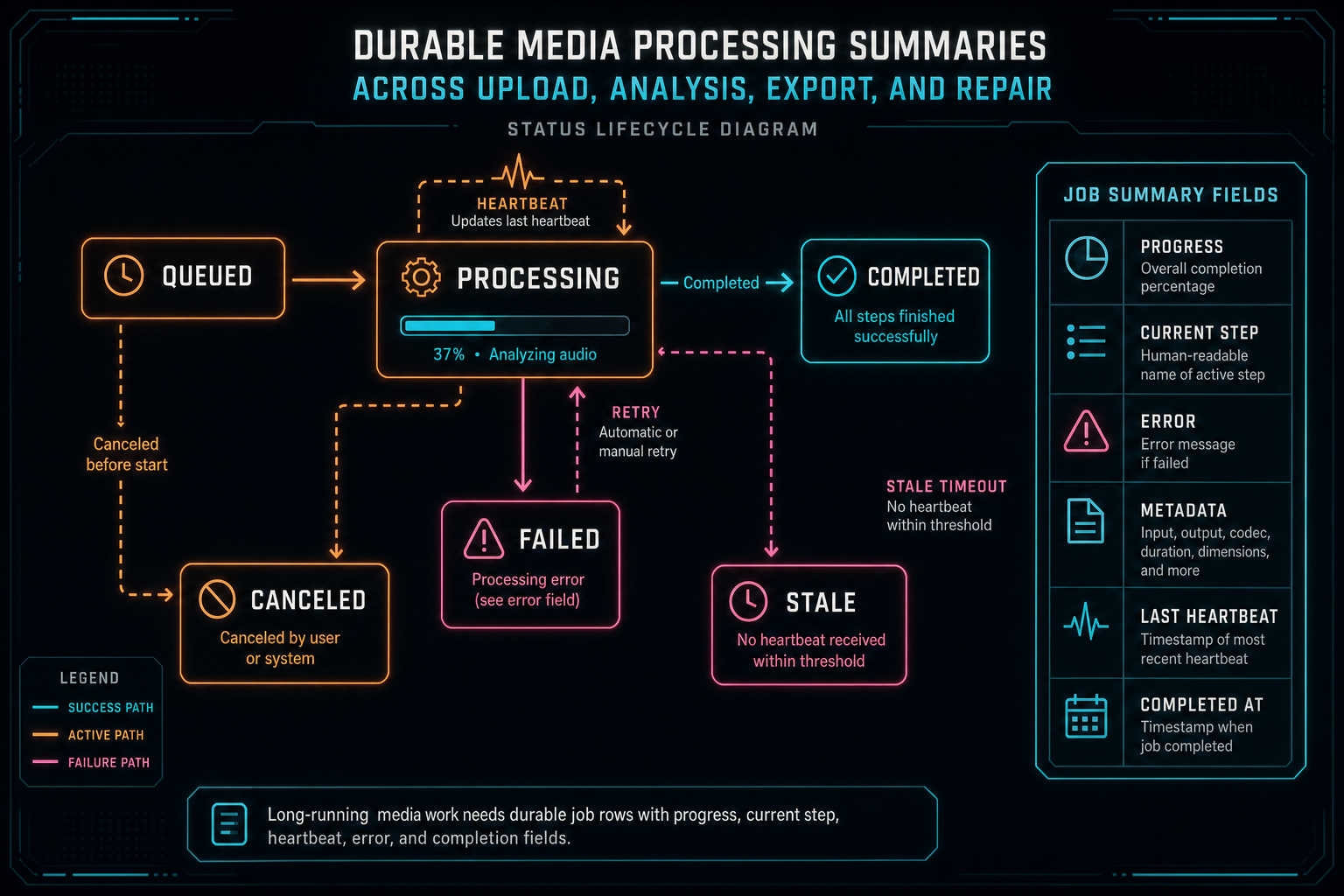
Long-running media work needs durable job rows with progress, current step, heartbeat, error, and completion fields.
Exports and Plan Assets Belong in the Same View
Upload summaries often stop at ingestion. That is too narrow for an AI video editor. VibeChopper includes recent project exports and project plan assets in the same project summary because media readiness is not only about source clips. A rendered export is a generated artifact that should stay connected to the project. A plan asset can be creative input, supporting material, or transcription work that affects AI edit planning. Render a timeline free
This is where media infrastructure and AI infrastructure meet. AI edit planning needs to know what source clips exist, whether transcripts are available, whether frames have visual descriptions, and whether attached plan assets have been processed. Render verification needs to connect an export artifact back to project state, clip counts, linked source videos, and storage paths. The media asset graph needs to show source clips, generated audio, rendered exports, and plan-backed assets without making each panel rediscover relationships.
Putting exports and plan assets into the summary does not mean every consumer renders every field. It means the server can offer one coherent project view, and product surfaces can select the parts they need. The upload monitor can focus on active ingestion. The media panel can focus on assets and readiness. AI edit runs can pull media context into planning and review. Repair workflows can attach the summary to an incident packet.
The CTA cards here point to rendering and AI edit runs because this is the part users feel after upload. A source clip becomes analyzed media. An analyzed media set becomes AI-editable context. A timeline becomes an export. The export becomes a durable artifact. The same summary helps those transitions stay visible.
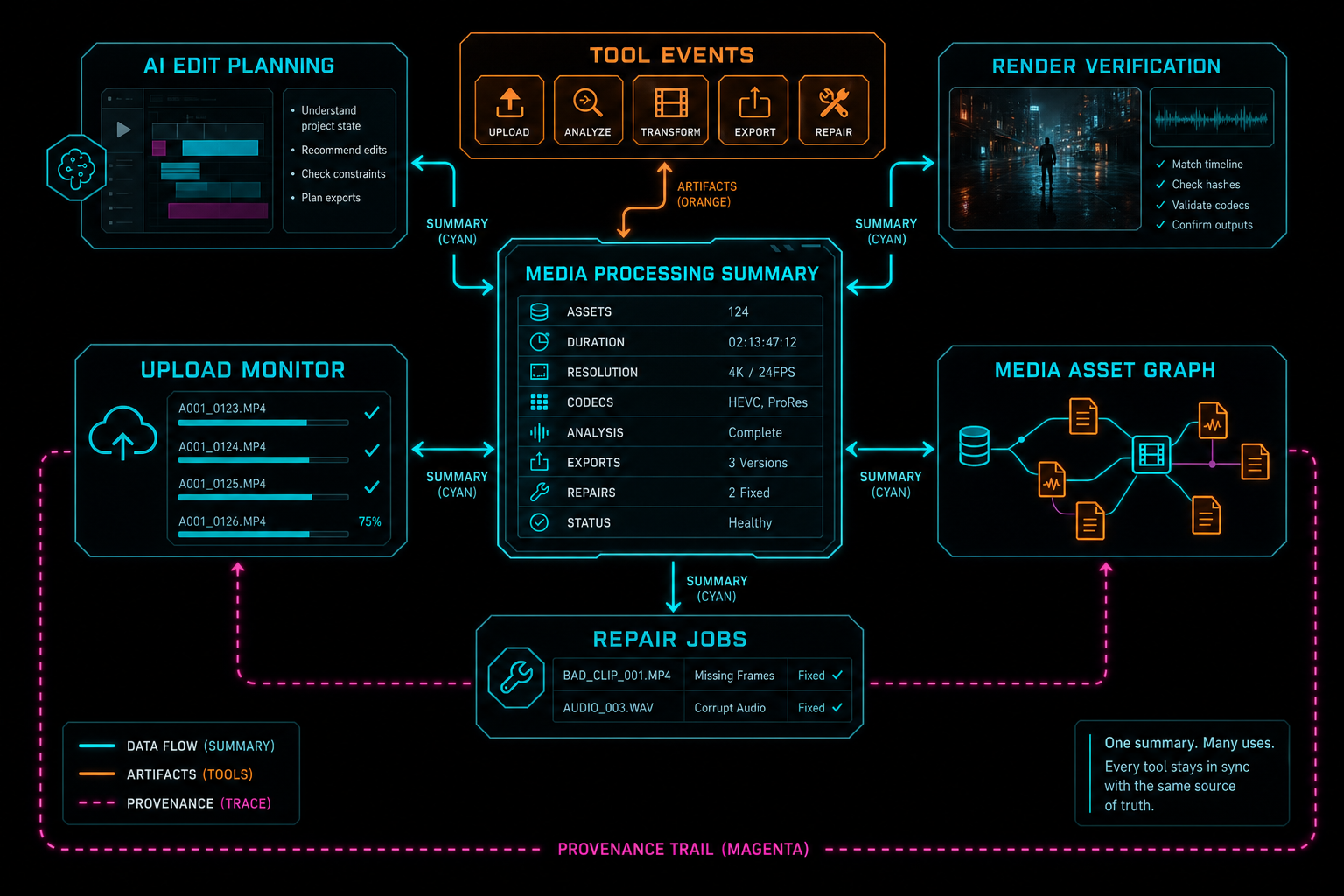
The same summary helps AI planning, editor traceability, export verification, and media browsing agree on project state.
Repair Needs Context, Not Just Errors
A user incident is rarely useful if it contains only a freeform complaint and a stack trace. Media bugs need context. Which project? Which video? Did the original upload finish? Were frames extracted? Were frame descriptions valid? Did transcription complete? Did generated metadata exist? Were exports requested? Were plan assets involved? Which server jobs were still running or already failed? Send feedback with context
server/incidentContext.ts uses the project upload processing summary as part of that context. When a feedback or remediation flow needs to explain what happened, it can attach a structured media state packet instead of asking a repair agent to infer everything from logs. The summary can be redacted, bundled with source evidence, and used to create a job that has a real starting point.
This is why the summary includes both artifacts and pending work. A remediation job should not waste its first pass discovering that frames are missing or that transcription was never completed. It should begin with those facts already available. It can then decide whether to retry derived media, repair a database relationship, re-run analysis, or explain that the source upload is still incomplete.
For users, the benefit is visible in the feedback loop. Report feedback with context, and the platform can turn that report into a trackable repair job. The public status page can show progress because the underlying incident was created from structured state. The product does not have to guess which media lane broke.
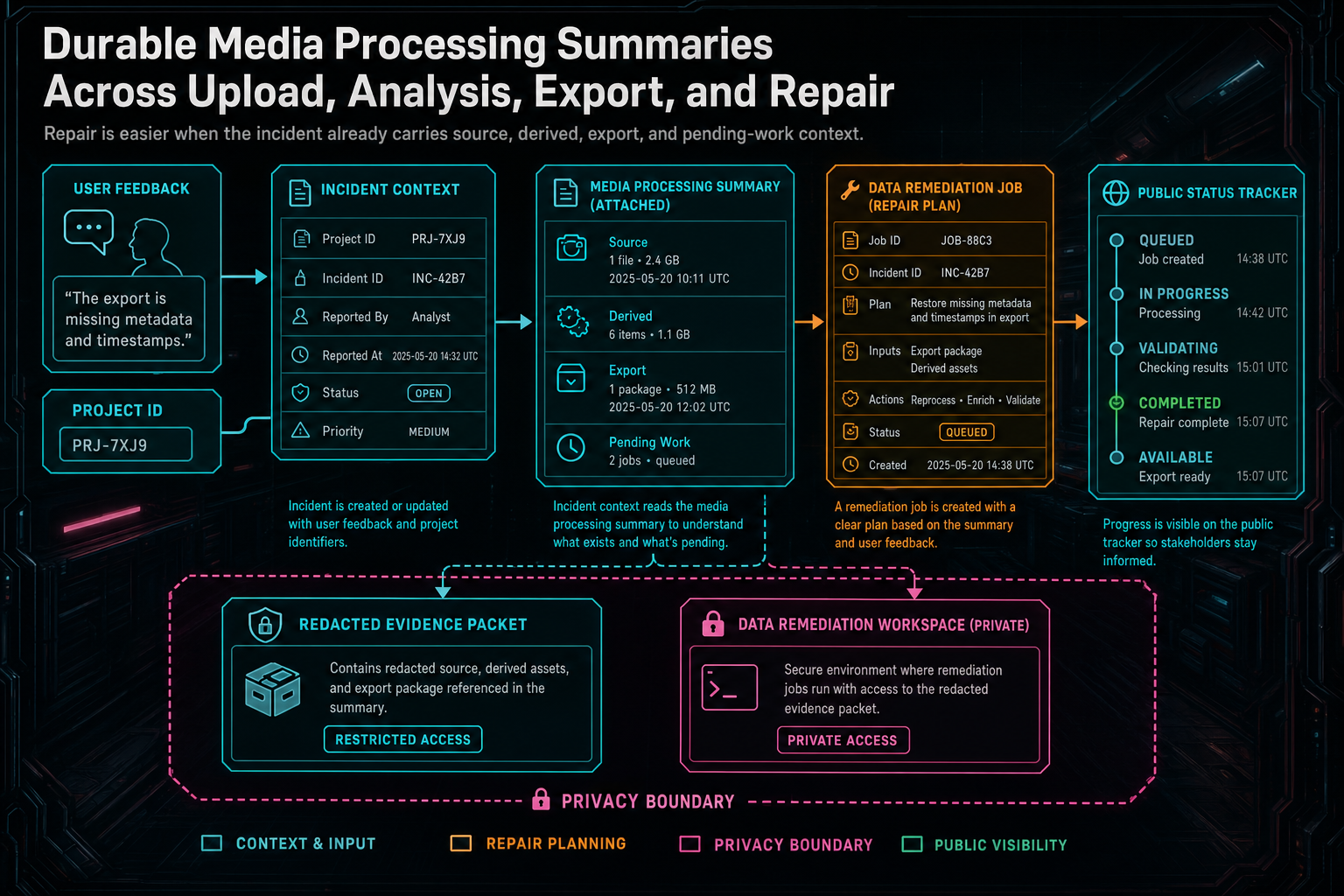
Repair is easier when the incident already carries source, derived, export, and pending-work context.
What Developers Should Copy
If you are building a media-heavy editor, copy the shape of the summary more than the exact fields. Create one server-owned project summary that joins source uploads, canonical media rows, derived artifacts, active jobs, exports, readiness, and repair context. Keep it user-scoped. Build it from stored records. Clamp limits. Let callers opt into completed and stale history instead of returning every old session by default.
Separate original state from derived state. Original upload status, bytes, file size, storage path, and content type answer one set of questions. Frames, descriptions, audio, transcripts, metadata, and proxies answer another. Do not collapse them into a single mediaReady boolean. A precise status vocabulary is what lets the product retry the correct missing step.
Make pending work explicit. pendingServerWork is a simple idea with a big payoff: name the missing or incomplete lanes. That list can drive UI chips, retry decisions, repair jobs, and support context. It also keeps users from reading silence as failure. If metadata is pending, say metadata is pending. If frame analysis is still describing records, say frame analysis is processing.
Finally, include generated and downstream artifacts. Exports, plan assets, generated music, overlays, render verification records, and AI edit runs all belong to the same media universe. A product-final editing tool should not treat upload as the only moment when media state matters. The whole project evolves, and the summary should evolve with it.
The Result
The final product behavior is straightforward. The editor can show whether source files are present, frames exist, AI descriptions are valid, audio is ready, transcripts are complete, metadata has been generated, proxies are ready, jobs are running, exports exist, plan assets are attached, and repair work is needed. It can do that from one server-built summary instead of from a pile of disconnected client assumptions. Explore your media graph
That is the right foundation for VibeChopper. The product promise is fast and creative: edit videos with your voice based on vibes. The engineering underneath has to be precise because real video work is messy. Uploads pause. Browsers fail to decode. Frame analysis can lag behind extraction. Transcripts can be pending while frames are ready. Exports can complete after the original edit session. Repair jobs need context days later.
Durable media processing summaries turn that mess into a readable system. Upload, analysis, export, and repair stop being isolated lanes. They become parts of one project state that the editor can display, AI can reason over, render verification can cite, and remediation can repair. That is how a media pipeline becomes a product surface.
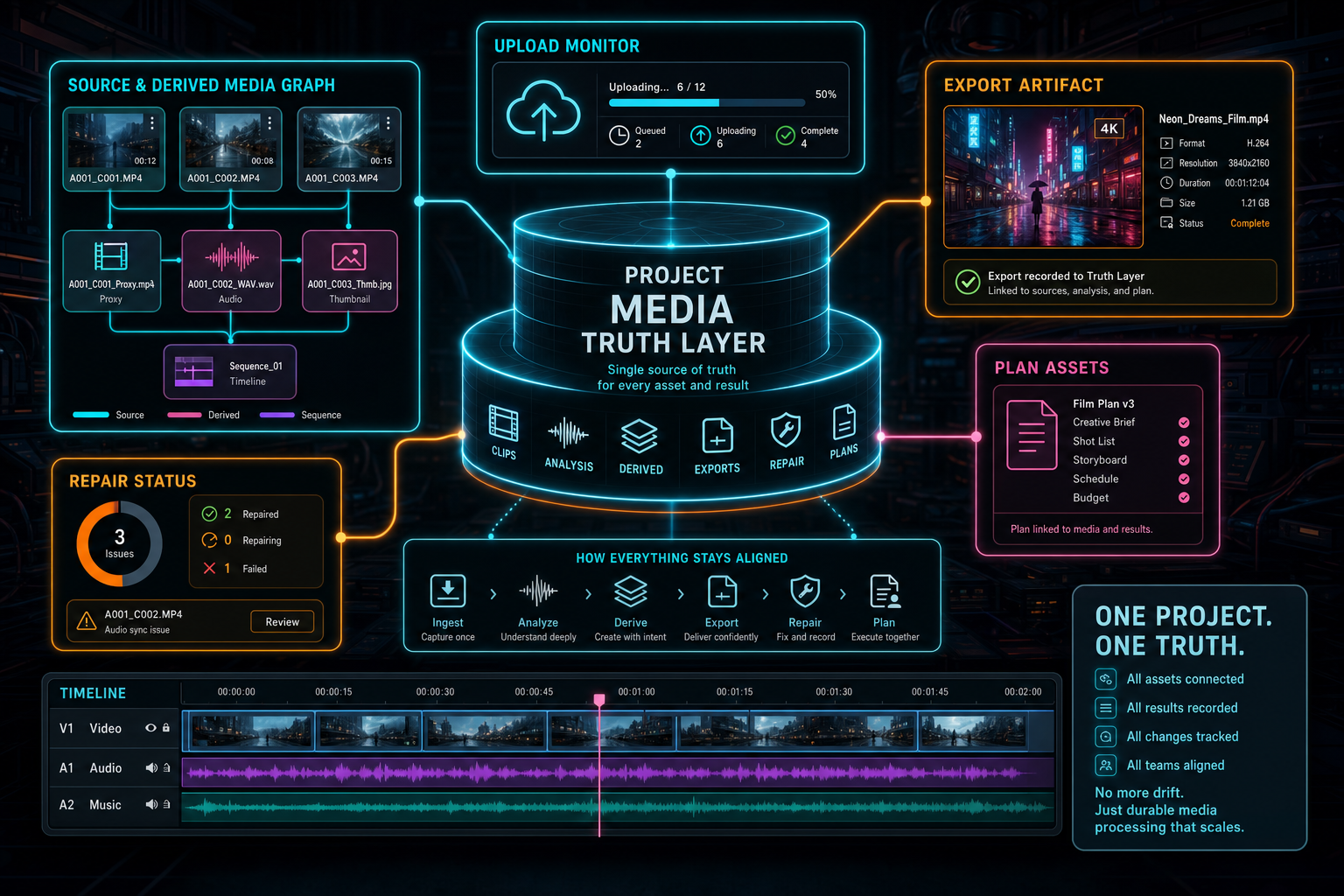
One project truth layer keeps media-heavy editing features from drifting apart.
Try the workflow
Open every feature from this post in the editor
These panels collect the features discussed above. Sign in once, finish your profile if needed, then the editor opens the first highlighted surface and walks through the tutorial.
Step 1
Open the media asset graph
See generated audio, rendered assets, source clips, metadata, and provenance in the media panel.
Explore your media graph →Step 2
Upload footage with progress you can trust
Watch large video uploads, processing, transcript work, and original-file storage from one monitor.
Upload a real shoot →Step 3
Render a verified timeline
Export a project through the same storage-backed render path described in this article.
Render a timeline free →Step 4
Inspect an AI edit run
Open the editor and see how plans, tool calls, artifacts, and render results stay connected.
Open the edit-run receipts →Step 5
Send contextual feedback
Capture voice or written feedback with project context so issues can become repairable jobs.
Send feedback with context →