
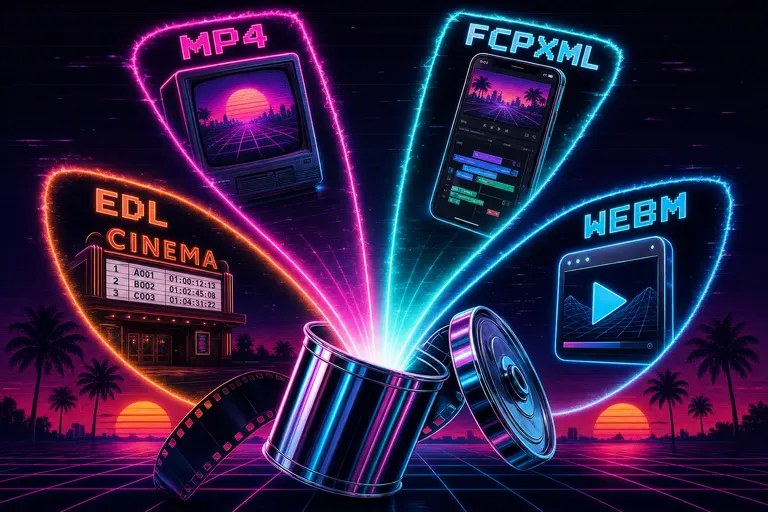
Overview
Gnarles here. Time to talk about the last step — the one where your cut leaves the room.
You've been on the timeline for an hour. Or four. Or twelve. The cut is good. You like it. You showed your partner. They liked it. Now you have to send it somewhere — a client, a Final Cut Pro editor a colorist is waiting on, a colorist who only takes EDLs, a phone, a TV, a Vimeo upload, an open-source web player that wants WebM, a network share that's only going to play MOV. Six destinations. Six demands. One cut.
The export step used to be where editors lost the rest of their night. Not because rendering an MP4 is hard — it isn't — but because every destination wants a different container, a different codec, a different resolution, a different frame rate, and a different timeline-handoff format. The tax wasn't on the cut. The tax was on the delivery.
We built the delivery in. MP4, MOV, WebM rendered on the server. Generic XML, FCPXML for Final Cut, EDL for the colorist. 4K, 1080p, 720p, 480p, or any custom canvas up to 8192 pixels wide. Frame rates from 24 to 120. One dialog. Past tense. Already shipped.
This is the tour.
1. The "What Format Does the Client Want" Tax
Every editor has lived the conversation. Client says "just send me the video." You say "in what format?" They say "video format." You say "MP4 or MOV?" They say "what's the difference?" Forty-five minutes later you've exported three versions, named them three different things, and you still don't know if the colorist got what she needed.
The cost was never the render. The cost was the combinatorics. Six destinations times six asks equals a small evening's worth of file plumbing that has nothing to do with whether the cut is good. So we made the dialog speak all six languages. Pick a row. Pick a resolution. Click export.
The original ExportDialog landed in commit 7181cf1 — the first big editor wave, November 2025. It shipped with Generic XML, FCPXML, and EDL right from day one. The server-rendered MP4/MOV/WebM came later in commit 594cd10 ("Server-side timeline render & export pipeline"), with a live progress bar wired to Server-Sent Events. The dialog you open today is the upgraded version from commit 30331fd, and the compositor that does the actual rendering got its effects pass in commit 0813646.
Six commits. Six formats. One dialog.
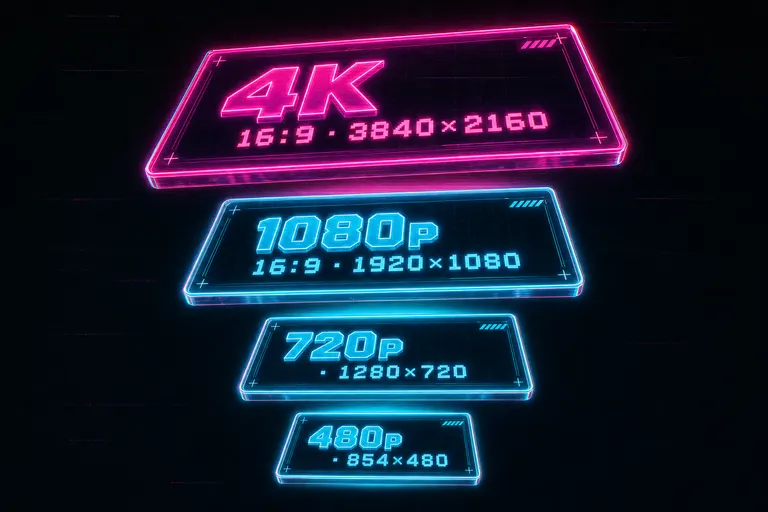
A vertical stack of four glowing resolution preset cards — 4K, 1080p, 720p, 480p — each card showing its pixel dimensions in chunky neon type
2. Server-Rendered MP4/MOV/WebM — Quality + Speed
Three of the six formats are real, finished video files. You pick one, the server renders it, you download the result. Here's what each one is.
MP4 (H.264). The universal one. Encoded with libx264 at CRF 20, veryfast preset, yuv420p pixel format. Plays on iPhones, Androids, Windows, Mac, Linux, the web, Smart TVs, anywhere a video has played. The safe default and the format the dialog opens with selected.
MOV (H.264). Same H.264 codec, QuickTime container. Some Apple workflows still want the .mov extension — old broadcast pipelines, certain Final Cut import paths, a Mac team that opens everything in QuickTime Player. The encode is identical to the MP4; only the container changes.
WebM (VP9). The open one. Encoded with libvpx-vp9 at 2 megabits per second, "good" deadline, cpu-used 4. WebM is what the open web wants — <video> tags without licensing baggage, embedded players that don't want to pay H.264 fees.
All three are encoded through the same compositor (server/videoCompositor.ts). It builds an ffmpeg filter_complex graph from your project — every clip gets trim and speed (via setpts for video and atempo for audio), every transition gets a fade, every overlay gets layered with its timing and opacity, every audio track gets mixed via adelay and amix, and the final canvas is scaled and padded to the resolution you picked. Then ffmpeg runs once and the file lands in object storage.
You don't see any of that. You see a progress bar. The progress bar is real — it streams over Server-Sent Events from /api/renders/:id/progress, with stage labels like "downloading sources," "compositing," "encoding," and a percentage that climbs the whole way. When it hits a hundred, you get a download button.
The render is queued through an in-process concurrency limiter so a burst doesn't overload ffmpeg. You can leave the dialog open. You can close it. The render keeps going. The "Recent renders" panel at the bottom shows finished jobs with download buttons and file sizes. Reps in, reps out.
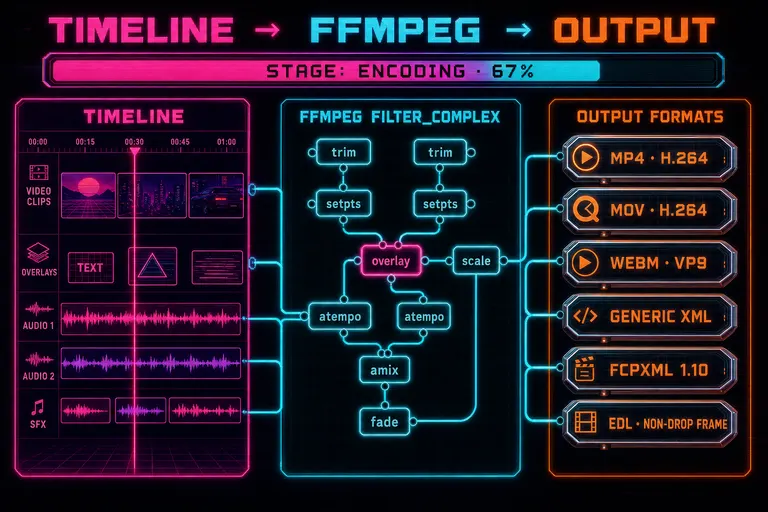
Diagram of the server render pipeline — timeline on the left, ffmpeg filter_complex graph in the middle, six format outputs on the right, with a live progress bar across the top
3. FCPXML — Handing Off to Final Cut
Sometimes the cut isn't the deliverable. Sometimes the cut is the handoff. Export your edit
You drafted the rough cut on VibeChopper. Your collaborator finishes in Final Cut Pro X. She wants the timeline, not the rendered video — she wants every clip, every cut point, every transition, every motion keyframe, every source reference, opened in her application so she can keep building from where you left off.
That's an FCPXML export. The dialog produces a real <fcpxml version="1.10"> file with resources, library, event, project, and spine — Final Cut's native timeline format. The pipeline lives in server/xmlExport.ts. It maps every clip on the main track with a video reference to an <asset-clip> element with the right offset, duration, and start attributes. The format resource at the top declares your output resolution and frame rate as a Final Cut format ID. Your editor opens the file. The timeline appears. She picks up where you left off.
It's a one-way handoff, not a round-trip — FCPXML doesn't carry the project's adjustment layers, overlay prompts, or AI tool-call history. Those stay in VibeChopper. The cut, the clips, the timecode, the source references all travel. If you're working with a partner who lives in Final Cut, this is the row that means "we're still working on the same cut, in two applications."
::
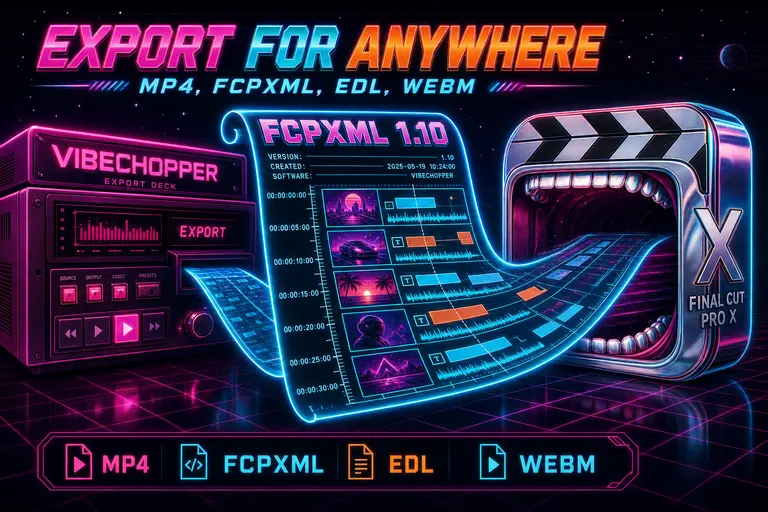
A glowing FCPXML scroll unspooling from a magenta VibeChopper deck into the open mouth of a chrome Final Cut Pro X app icon
4. EDL — Handing Off to the Colorist
EDL stands for Edit Decision List. It is the oldest, plainest, most-universal timeline interchange format in the business. A text file. Still what most colorists want when they grade your cut, because every NLE on earth — DaVinci Resolve, Avid, Premiere, the legacy broadcast tools — speaks EDL.
The VibeChopper EDL export emits a CMX3600-style list. TITLE: at the top, FCM: NON-DROP FRAME underneath, then one event per clip — event number, reel name, V for video, C for cut, source-in, source-out, record-in, record-out. Each event is followed by a FROM CLIP NAME: comment with the clip's name and a SOURCE FILE: comment with the source filename, so the colorist can relink. Timecodes formatted at the project's frame rate as HH:MM:SS:FF. Reel name is the first eight characters of the source video's display name, padded to eight characters wide so old EDL parsers don't choke. Plain text. Universal.
EDL doesn't carry effects, transitions, or audio mixing — only the cuts and the source references. That's by design. The colorist doesn't want your transitions. She wants the seams. If you also want her to see your effects intent — the LUT you tried, the adjustment-layer treatment you applied — pair the EDL with a Generic XML export from the same dialog. The Generic XML (<timeline version="1.0">) carries transitions, motion keyframes, and overlays in a vendor-neutral structure. Send the EDL for the cuts and the XML for the notes.
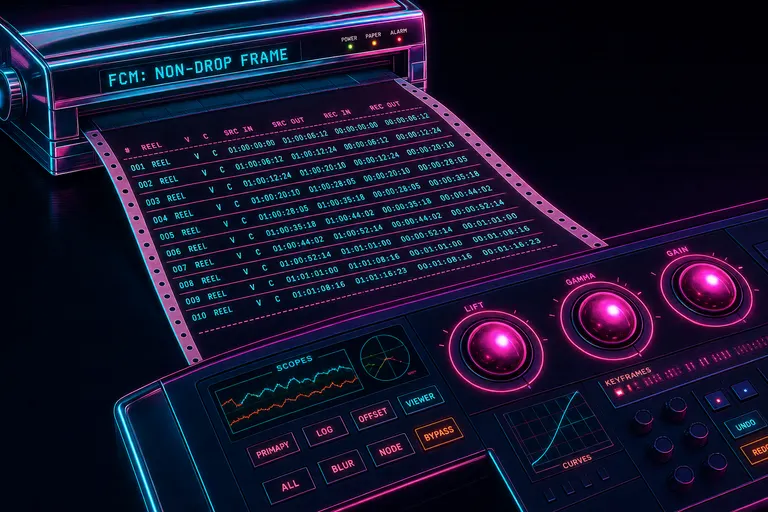
A neon EDL printout pulled from a chrome dot-matrix printer, each event labeled with timecode columns, sliding toward a colorist's grade panel
6. Walkthrough — Export at Three Resolutions
Let's run a rep. You finished a 90-second product demo. The client wants a 4K master for their reel, a 1080p version for YouTube, and a 720p version they can email around the office. Three files. One project.
Rep 1: 4K master. Open Export. Format: MP4 (H.264). Preset: 4K 16:9 — 3840×2160. Frame rate: 30fps. Click Export. The dialog drops into a progress bar — "downloading sources," "compositing," "encoding," and a percentage that climbs the whole way. When it hits a hundred, the download button appears with the file size next to it. Save.
Rep 2: 1080p YouTube. Without leaving the dialog, change the preset to 1080p 16:9 — 1920×1080. Format stays on MP4. Click Export. New progress bar. New file. Save.
Rep 3: 720p office. Change the preset to 720p — 1280×720. Click Export. New progress bar. New file. Save.
Three files. Three resolutions. One source timeline. The compositor scales each render to fit the requested canvas with padding when the aspect ratio doesn't match — so a portrait clip dropped into a 16:9 canvas gets clean black bars rather than a stretched mess. Scroll down to the "Recent renders" panel at the bottom of the dialog: all three jobs are there with format badges, resolution badges, file sizes, and download buttons. You can re-download any of them later without rerendering.
If your client comes back tomorrow asking for the 1080p as a WebM too — switch the format to WebM (VP9), keep the 1080p preset, click Export. A new job runs. The original 1080p MP4 is still sitting in the panel. Two renders of the same cut, different containers. No re-cut required.
The custom resolution row underneath the presets handles anything else. Width and height inputs accept any value from 16 to 8192 pixels. The frame rate dropdown offers 24, 25, 30, 50, 60, 90, and 120, with a custom field if you need 23.976 for cinema. The dialog clamps anything outside 1–120 to keep the encoder honest.
One honesty note on frame rates: exporting above the source frame rate routes through ffmpeg's timing rather than motion-estimated frame blending. The dialog says this out loud in a caption under the FPS picker. Going up will duplicate or interpolate frames; it won't synthesize smooth motion from a 30fps source into 120fps slow-mo. For real slow-motion you want to shoot at the high frame rate.
---
Six formats. Four standard resolutions. Custom up to 8192 pixels. Frame rates from 24 to 120. Live progress over Server-Sent Events. A recent-renders panel that remembers everything you've made. One dialog.
The point of the export step is that it stops being a step. It's a click. The cut is the work. The delivery is the formality. We made the formality fit on one screen.
If you want to see why the cut is what it is before you ship it — every AI tool call, every transcript range it picked, every clip it swapped — the tool-events panel shows the AI's work with one-click jumps to the exact frame. If you want to understand the ffmpeg filter graph the compositor builds for every render — the trim, setpts, atempo, overlay, scale, fade, amix chain that turns your timeline into a finished file — the server ffmpeg compositor write-up walks through the architecture.
The cut leaves the room when you're ready. Not when the tool is.
See you on the timeline.
— Gnarles
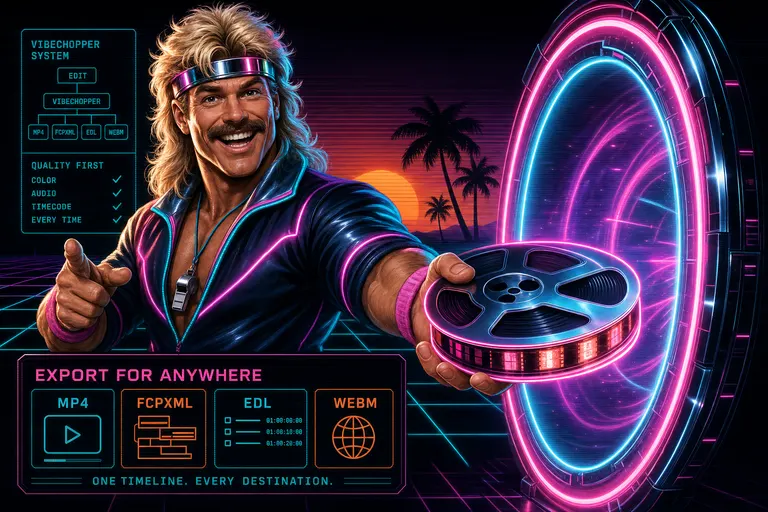
Gnarles in a chrome-rim sweatband handing a glowing reel of film through an open neon portal toward an off-screen client
Try the workflow
Open every feature from this post in the editor
These panels collect the features discussed above. Sign in once, finish your profile if needed, then the editor opens the first highlighted surface and walks through the tutorial.