Overview
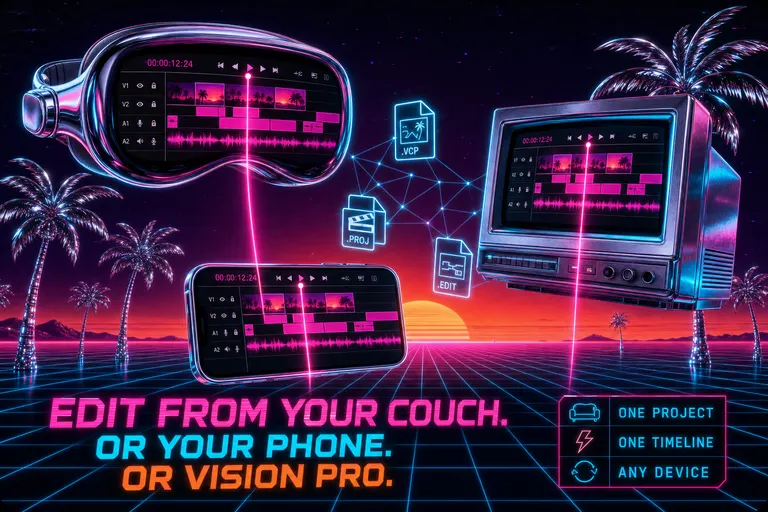
1. Three devices, one edit
It's 8:14pm. You're on the couch. The TV's on but you're not watching it.
You shot a wedding two days ago. You did the first cull on the train home that night. You opened the Mac yesterday morning and laid in the cold open. You added a music drop on a dog walk and a voiceover line on the subway. Right now you have a phone in your hand and a Vision Pro on the coffee table and a watch on your wrist. Your laptop is closed in the next room.
You don't think about which device you "should" be editing on. You just keep editing.
The phone screen shows the same timeline the laptop showed this morning. Same clips, same playhead, same chat history. When you slide the Vision Pro on, the timeline blows up into a panel the size of a window, the video player floats above it, the chat docks on the right, and your hands move into the air to do the work your thumb was doing thirty seconds ago. The watch doesn't show the whole timeline — it shows the playhead and a play/pause button, because that's what a watch is good for.
We built the native universal app — iPhone, Mac, Vision Pro, Apple Watch — and we shipped the mobile web editor in the same component tree. The whole thing crossed the App Store Connect finish line on November 30, 2025. visionOS green, macOS green, iPhone green, watch bundled in. The browser editor on the phone shipped its mobile UI a few months later, when we tore out the placeholder flag and let the viewport decide.
You don't choose a device. You pick a room.
2. The phone — what fit on a 3-inch screen
The phone editor is not a stripped-down version of the desktop editor. It is a stripped-for version. Different things matter on a phone. We let those things drive the layout. Open VibeChopper on your phone
The web app on a phone runs through MobileTimeline.tsx and MobileAIChat.tsx. Same React tree, different components. When the viewport is below the mobile breakpoint, the editor swaps to a touch-first timeline with 60-pixel track rows, a 40-pixel ruler, and gesture handlers wired for pinch-zoom, two-finger pan, and long-press context menus. Haptic feedback fires through useHaptics on every clip select, every trim edge grab, every snap. The drag handles are sized for a thumb. The playhead is a full-bleed vertical line you can scrub anywhere on the ruler. The play/pause button sits where your thumb already is.
The chat panel on mobile is its own thing too. MobileAIChat opens as a bottom sheet — the standard iOS interaction for "drawer of stuff you do a lot." Inside the sheet: the full chat history, the same AI-edit-run cards you get on desktop, the same attachment tray, the same model fan-out controls. Voice input lives on the left edge of the input box, sized for a thumb. The transcript drops into the input field. You read it once. You hit send.
On the May 2 wave (commit 4749da0), we ripped out the placeholder flag (ENABLE_PLACEHOLDER_MOBILE_UI) that had been gating the mobile UI behind a feature switch. Now it ships based on viewport. The phone gets the phone editor because it's a phone. No flag. No "try the beta." No "switch to mobile view."
The native iOS app does the same job from inside Apple's frame. It's a SwiftUI app — iOSAppView, iOSEditorView, iOSTimelineView, iOSChatPanelView, iOSVideoPlayerView, iOSMediaLibraryView, iOSPropertiesPanel. It signs you in once with a bearer token. When you launch it for the first time, it auto-opens the demo project (commit 9b9a287 — "Auto-open demo project on iOS and fix split view navigation"), so you don't stare at a blank screen wondering what to do. There is a project waiting. Clips on the timeline. A chat in progress. You can swipe a clip immediately.
The iPhone TestFlight build went green on November 30, 2025 (commit ef42eb3 — "iPhone TestFlight build GREEN!"). Real device. Real screen. Real edit.
::
3. Vision Pro — spatial editing on the couch
The thing nobody quite said about Vision Pro is that it's a living-room device. You don't wear it at your desk. You wear it on the couch, on the floor, on the bed. Where a laptop would be awkward and a TV would be passive. That's the room we built the spatial editor for.
The visionOS app lives at apple/VibeChopper/VibeChopper/Platforms/visionOS/. Nine Swift files: VisionAppView, VisionEditorView, VisionTimelineView, VisionVideoPlayerView, VisionMediaLibraryView, VisionChatView, VisionImmersivePlayerView, VisionGestureHandler, VisionSpatialAudio. Every one of them is real code, not a stub.
The timeline isn't a 200-pixel strip at the bottom of a 13-inch screen. It's a translucent panel floating in the air in front of you at whatever distance feels right. You reach for it. Your fingers do the work. The video player is a separate panel you can resize — push it big, push it close, push it small. The AI chat docks on the right. The media library can ride the left. You arrange the room around yourself.
There's an immersive mode too. VisionImmersivePlayerView plus a custom ImmersiveSpace — the player goes full-360 around you, the spatial audio places sound in the room, and you scrub from a small floating controller. Useful when you want to feel the cut before you ship it. The cold open should hit you in the chest. You can put yourself inside the cold open to find out.
Deep links from email or web bring you straight into a project (commit 5575f2b — "Handle visionOS deep link and seed demo project after auth"). The first time you sign in on visionOS, it seeds the demo project so you have something to touch. The visionOS TestFlight build went green on November 30, 2025, at 4:33 PM (commit e6ab580 — "visionOS & macOS TestFlight builds GREEN!"). Asset catalog with proper layered visionOS icons. Real upload. Real "processing VALID" status.
We're not telling you to buy a Vision Pro. It's expensive, and the room you actually edit in might be a kitchen table. We're telling you that if you own one, the editor knows. If you don't, the editor doesn't pretend you do. The phone editor doesn't ask you about your headset. Neither does the Mac.
But if you put one on at 11pm because you're tired and the desk feels like a chore, the timeline is already there. You don't reopen the project. The project reopens around you.
4. Mac — the room you already use
The Mac is where you actually finish.
There is a class of work that is hard to do anywhere else. Frame-accurate trim. Color match across a hundred clips. Multitrack mix. Heavy export. You can do all of these on a phone. You will not enjoy doing all of them on a phone. The Mac is the device that respects that.
The macOS app ships from apple/VibeChopper/VibeChopper/Platforms/macOS/. Ten Swift files: macOSAppView, macOSEditorView, macOSTimelineView, macOSVideoPlayerView, macOSMediaLibrarySidebar, macOSPropertiesInspector, macOSChatPanelView, macOSToolbar, macOSMenuBar, macOSKeyboardHandler. Toolbars and menu bars and a real keyboard handler, because that's what Mac users want. The cmd-key. The arrow-key nudge. The shift-click multiselect. The right-click context. Things you forget you need until they're missing.
The macOS TestFlight build went green on November 30, 2025, at 4:39 PM — six minutes after visionOS. Same commit (e6ab580). Same wave. Same green check.
The Mac app talks to the same backend the web app does. Same Drizzle schema. Same Express routes. Same AI provider harness. If you're working in Safari on the same Mac, you're hitting the same endpoints — /api/project, /api/videos, /api/frames/:videoId, /api/transcript/:videoId, /api/sync. The native app is faster for big workloads because it doesn't render through a tab, but it isn't a different product. It's the same product wearing a Mac-shaped suit.
For some of you, this is the only device that matters. The Mac shipped first, because of course it did — the team writes the app on Macs. But the Mac is one of four screens now, not the only screen.
5. The watch — yes, really, what it's for
You will hear "video editing on a watch" and you will laugh. Good. Laugh. Then read what the watch app actually does. Get the universal app free
It does not let you edit a clip. It does not let you scrub frame by frame. It does not let you set keyframes. Those aren't watch jobs. The watch app does three things, and it does them because nothing else can do them as well.
It controls playback. WatchPlaybackControlView shows the current project name, the playhead time over the duration, a linear progress bar, and play/pause/skip controls. You turn the Digital Crown to scrub. The watch is on your wrist while you're cooking, folding laundry, sitting back from the desk. Hit play. Hit pause. Jump back ten seconds because you missed a beat. You don't break your hands away from what they're doing.
It listens to chat. WatchChatView is an AI chat with voice input and preset questions. The voice button hands the take to the same transcription pipeline the phone uses. You can dictate a note to your edit while walking the dog without taking the phone out of your pocket.
It surfaces project state. WatchProjectListView and WatchProjectSummaryView show what you're working on. WatchNotificationView handles alerts — "your render finished," "your collaborator left a comment." WatchComplicationView parks the current project on the watch face. You glance at your wrist. You see the project.
These are the right watch jobs. Not because we shrunk the app onto a tiny screen — we didn't. Because we asked what a watch is for and built the parts that answer that question.
The watch app rides inside the iPhone build. When the iPhone TestFlight went green on November 30 (commit ef42eb3), the watch came with it.
::
6. The single timeline that follows you
None of this matters if the four devices are four different products. They aren't. They're the same product wearing four shapes.
The trick is the data layer. Everything that lives on a screen — clips, transitions, keyframes, chat history, frame descriptions, transcription, export presets — lives in one Postgres database. The native apps talk to the same Express routes the web app talks to. The Vision Pro doesn't have its own backend. The watch doesn't have its own backend. There is one canonical project, and every device is a view onto it.
Auth is the seam that makes it feel seamless. The native apps sign in with a bearer token issued by the same Replit Auth session that signs you into the browser. When you open the iOS app for the first time, it asks for your credentials, gets a token, stashes it, and never asks again. When a deep link arrives — vibechopper://... from an email, from a share, from a /api/login?returnTo=... redirect — the app catches it through .onOpenURL and appViewModel.auth.handleDeepLink(url), finishes the handshake, and lands you exactly where the link wanted to take you. visionOS does the same. iOS does the same.
The whole universal-app scaffold landed in one commit on November 29, 2025 — 022cbf7, "Add universal Apple app, update gitignore for secrets, fix local dev." Two days later, all four targets had green builds in App Store Connect. Two days. Scaffold to TestFlight.
If you want the engineer's tour of how the auth and deep-link flow actually shake out — bearer tokens, JWT fallback, deep-link callback handling, what happens when a session expires mid-edit — the developer-blog companion on native app auth has the wire-level walkthrough. That's the post about the seam. This is the post about what the seam feels like.
It feels like nothing. That's the goal.
7. What this changes about how you edit
It used to be true that "where you edit" was a real decision. You went to your desk. You sat down. You committed to a session. Starting an edit was big and physical — turn on the machine, find the project, open the timeline, scroll back to where you left off. You needed time before you needed the edit.
Now the act of continuing is small. You don't open a project. You glance at the timeline already on your screen. The edit was waiting.
This changes your week. The four-hour Saturday at the desk doesn't have to be the only time the cut moves. The cut moves in five-minute increments. On the train. On the couch. While the kettle works. While the dog sniffs. The total still adds up to four hours by Friday. It just doesn't land all at once on Saturday.
The edit gets more thinking time too. You're not loading the project from scratch every session. The part of your brain that used to reorient at the start of every session is free to actually think about the cut. Reps in. Reps out.
8. What we did not build, and why
We did not wrap the web editor in a WebView and slap it on the App Store. We did not ship "view-only" versions on the smaller devices. We did not require a different account for native and web. We did not build a separate timeline data model for mobile and ask you to reconcile when you switched devices. One timeline. One database row. One source of truth.
We did not build a watchOS clip editor, because nobody wants to edit clips on a watch. We did not build a visionOS "fly through your video" gimmick, because nobody finishes a cut on a gimmick. We did not build a Mac-only "pro mode" because the Mac isn't more pro than the phone — it's just better at certain jobs.
What we built is: a timeline, four front doors, one auth, and an honest sense of which jobs belong on which device. The phone is for moving the cut. The Mac is for shaping the cut. The Vision Pro is for feeling the cut. The watch is for triggering the cut.
9. Pick the room
You don't pick a device anymore. You pick a room. Train, you're on the phone. Desk, you're on the Mac. Couch with the headset within reach, you're spatial. Walking the dog, you're on the watch. The decision is the room. The product follows.
This is what universal means. Not "the same app on every device" — that's a checkbox. Universal means the same edit on every device. The timeline travels. Open the app on the device you have in your hand. The project is already there. Push the next frame.
See you on the timeline.
— Gnarles
---
Companion reading: Speak Your Edits — Voice-First Editing on the Subway covers the voice surface that lives on the phone editor, and the watch's chat picks up the same pipeline. Share a Cut with Your Client Without Exporting covers what happens when the project leaves your devices and reaches someone else's. For the engineer's walkthrough of the auth and deep-link seam that makes the universal app feel like one app, see the developer-blog companion on native app auth.
Try the workflow
Open every feature from this post in the editor
These panels collect the features discussed above. Sign in once, finish your profile if needed, then the editor opens the first highlighted surface and walks through the tutorial.
Step 1
Open VibeChopper on your phone
Pull up the app on the device you're already holding. Same project, same timeline, same chat — sized for your thumb.
Open VibeChopper on your phone →Step 2
Get the universal app
iPhone, Mac, Vision Pro, Apple Watch. One install. Sign in once. The timeline follows you to whichever screen you sit down at.
Get the universal app free →