
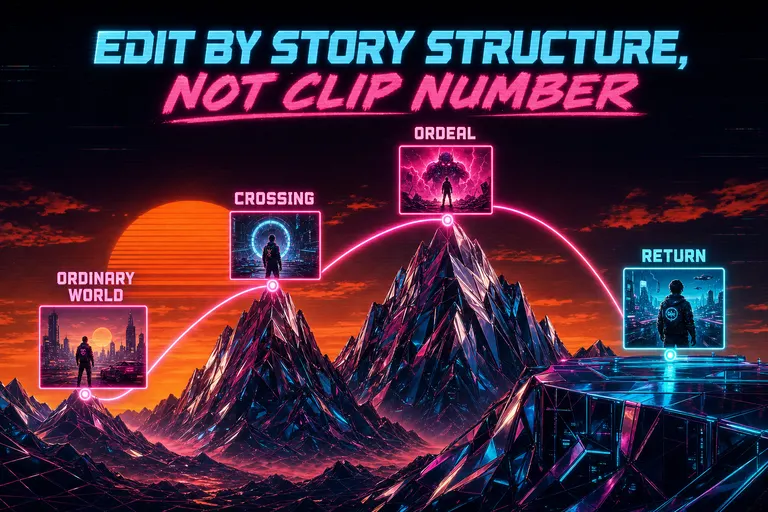
Overview
Gnarles here.
You opened your timeline at clip one. You stared at clip two. You scrolled to clip seventeen, decided it was actually clip three, dragged it left, and now everything past it is two seconds off. By the time you got to clip thirty, you forgot what the cut was about.
That's not editing. That's bookkeeping with thumbnails.
Your edit is a story. It's not a list of timestamps. We built the narrative-framework view so the timeline finally knows the difference — and so do you.
The list-vs-story reframe
Here's the trap. Every NLE since the 1990s gave you a horizontal track and called it a timeline. Beautiful. Honest. Also: secretly a spreadsheet. First column clip. Second column in-point. Third duration. You scroll, you drag, you ripple, you scroll.
The story in your head doesn't work that way. The story in your head has roles. There's the part where you set up who the subject is. There's the part where everything goes sideways. There's the climb back. There's the landing. Those parts aren't 0:14 to 0:29 — they're "the moment her mom showed up" and "the laugh that broke the room."
When you edit clip-by-clip, you spend the whole night translating between the two. You know what the story wants. The timeline only speaks timestamps. So you do the translation in your head, by hand, every drag.
We took that translation away from you. The narrative-framework view, shipped as part of the multi-agent timeline build at the end of November, gave you a second way to look at your edit. Same clips. Same project. Same export. But instead of "clip one, clip two," you see roles — Setup. Confrontation. Resolution. Or Ordinary World. Call to Adventure. Ordeal. Or Hook. Content Block. Pattern Interrupt. CTA. Whatever framework matches your story's shape.
The clips don't move. The labels change. And once the labels are on, everything you do next is in service of the story, not in service of the spreadsheet. !Left: a flat list of timestamps in a grey console. Right: the same clips arranged on a glowing narrative arc.

Storyboard grid and the narrative view
Open a project. Press the storyboard button. The timeline collapses into a grid. Edit to a story structure free
Every clip becomes a card. The thumbnail comes from the middle of the clip — not the cold first frame, not the dead last frame, the middle, where the shot is actually about something. The card carries a duration. It carries a role badge if you've assigned one. It can be dragged. It can be grouped. It can be sorted.
Group by none and you get all your clips, in timeline order, as a wall of thumbnails. This is the view for when you can't remember what you shot. Scroll once. Now you remember.
Group by role and the wall reorganizes by narrative function. Every Setup clip lives together. Every Confrontation clip lives together. The clips you haven't tagged yet land in "Unassigned," sitting there asking to be picked up.
Group by act and the grid splits into the act structure of the framework you picked. Group by track and you see how audio, overlays, and video clips line up — useful for the layered docs where the voiceover is doing half the work.
The narrative view sits next to the storyboard. Three modes: timeline, structure, storyboard. Same data, three lenses. Timeline mode keeps your horizontal track but paints each clip in the color of its assigned role, so you can see at a glance where Setup is bleeding into Confrontation. Structure mode plots a pacing curve — how intense the cut should be at each beat — and overlays your actual cut on top, so you can see where your edit drags and where it spikes. Storyboard mode is the grid.
You bounce between them. Storyboard to assign roles. Structure to check pacing. Timeline to actually cut. Reps. Sets. Cuts.
::

A retro CRT showing a grid of glowing storyboard tiles, each labeled with a narrative role badge.
The five frameworks we shipped
We seeded five frameworks. Not fifty. Not five hundred. Five that cover most of what a creator actually ships. You can build your own on top, but most cuts land cleanly inside one of these.
Hero's Journey — 12 beats, three acts
Joseph Campbell's classic monomyth, in twelve beats. Ordinary World. Call to Adventure. Refusal of the Call. Meeting the Mentor. Crossing the Threshold. Tests, Allies, Enemies. Approach to the Inmost Cave. Ordeal. Reward. The Road Back. Resurrection. Return with Elixir.
This is for the long-form transformation cut. The doc about the person who left their job to make pottery. The brand piece about the company that almost died. The wedding film that travels from "before they met" to "the kids are watching them dance." Anything with an arc — somebody starts somewhere, gets called, gets tested, ends up changed.
The pacing curve peaks at Ordeal around the middle and again at Resurrection near the end. If your cut is flat through those beats, the story isn't landing. The structure view shows you that flat patch in cyan. You'll know where to lean in.
Three-Act Structure — Setup, Confrontation, Resolution
Twenty-five percent setup. Fifty percent confrontation. Twenty-five percent resolution. The oldest structure in the book and the one nine out of ten edits actually want.
This is for everything that isn't a tutorial or a personality reel. The vlog. The short doc. The wedding teaser. The corporate piece that pretends to be a story. If you're not sure which framework to pick, pick this one.
The midpoint — right at the 50% mark — is where you raise the stakes. If your cut doesn't have a "wait, this just got bigger" moment in the middle, the audience checks their phone. The structure view marks the midpoint with a chrome tick. Aim a clip at it.
YouTube Formula — Hook, Intro, Content Blocks, Pattern Interrupts, CTA, Outro
This is the retention-tuned structure. Five-second hook. Five-second intro. Content block. Pattern interrupt. Content block. Pattern interrupt. CTA. Outro.
The pattern interrupts are the trick. Every twenty-five percent of the way through, you need a change — a B-roll burst, a joke, an angle shift, a quick story, a tease of what's coming. The view will mark where they belong. If you don't have a clip there, the structure mode flags an empty band, and you know you need to drop in cutaways or you'll lose half your audience in the soft middle.
If you ship long-form on YouTube, pick this one. The hook beat asks five percent of your total runtime. Five percent of a fifteen-minute video is forty-five seconds. That's all the time you get before they bounce. Treat it like a sprint.
AIDA — Attention, Interest, Desire, Action
Marketing classic. Attention. Interest. Desire. Action.
Use this when the cut is selling something. The product reveal. The course launch. The brand sizzle. Attention is the first fifteen percent — the eye-grab. Interest is the next thirty — what does the thing do. Desire is the next thirty-five — what does it feel like to have it. Action is the closer.
If your edit feels like a vibe wash with no ask at the end, you skipped Action. The structure view will tell you the last twenty percent has zero clips tagged "Action" and your CTA is invisible.
Problem-Agitate-Solution — the persuasive cut
Problem. Agitate. Solution. Proof.
Use this for sales videos, case studies, demo reels, anything where you're convincing somebody to switch. Twenty-five percent identifying the problem. Twenty-five percent twisting the knife. Thirty-five percent presenting the solution. Fifteen percent of proof — testimonials, data, demos — and the close.
It is the most direct of the frameworks. It's also the easiest to over-do. The "agitate" beat is twenty-five percent of your runtime, not all of it. If your cut spends the first ninety seconds making people feel bad, they'll leave before the relief shows up. The structure view will warn you when your agitate band is eating the solution band.
That's five. Hero's Journey. Three-act. YouTube Formula. AIDA. Problem-Agitate-Solution. We seeded each one with a pacing curve, a color scheme, and coaching prompts per beat — so when you click into "Ordeal" or "Pattern Interrupt" or "Agitate," you get a short coach note explaining what that beat is doing for the story and what to look for in your footage.
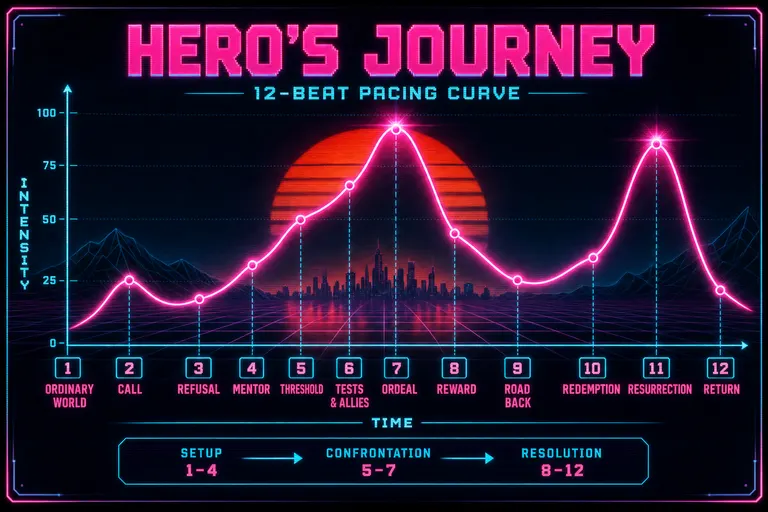
Diagram of the 12-beat Hero's Journey pacing curve with peaks for Call, Threshold, Ordeal, Resurrection, Return.
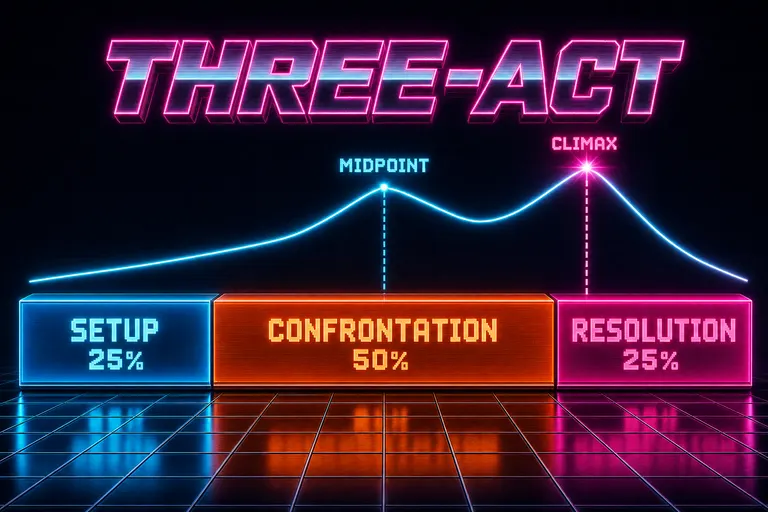
Three-act pacing diagram with Setup / Confrontation / Resolution bars in 25/50/25 proportion.
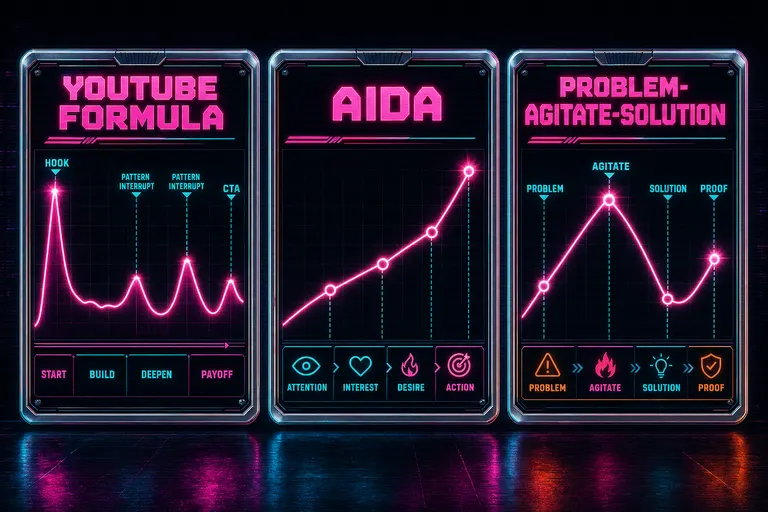
Three small framework cards side by side: YouTube Formula, AIDA, Problem-Agitate-Solution, each with a tiny pacing curve.
AI role-assignment suggestions
Here's where the work gets light. Open the storyboard view
You don't have to tag every clip yourself. You can, and sometimes you want to — the cut is yours, the choices are yours. But for the first pass, you press one button.
The button is Suggest Roles. The AI reads everything it already knows about your project — the per-frame descriptions, the diarized transcript, the title and synopsis it wrote when you uploaded — and it proposes a role for every clip in the project. It runs against the framework you picked. So if you're on three-act, every clip gets nominated for Setup, Confrontation, or Resolution. If you're on Hero's Journey, the same clips get nominated against the twelve beats instead.
You don't have to take the suggestions. They land as proposals. You see them in the storyboard grid as ghosted role badges with a sparkle icon. Click to accept. Click to reject. Click to swap. The clips that don't fit anywhere stay in Unassigned, and that's data too — those are the clips that probably don't belong in this edit. You can stash them or cut them.
Why does this work? Because every frame got described. Every word got transcribed. The AI knows that clip seventeen is "wide shot, golden hour, subject walking away from the camera, no dialogue, music swells" and it knows that's a Crossing the Threshold shot, not an Ordinary World shot. It's not guessing from the timecode. It's reading the footage.
We shipped the suggest-roles route as part of the same multi-agent wave that built the narrative view. It calls into the project's existing context — the same context the chat panel uses when you tell it what you want and watch it cut — and returns a structured proposal per clip. You see the rationale. You approve the ones you like. You ignore the rest.
It's a sparring partner, not a replacement. It does the boring tag-every-clip pass so you can spend your judgment on the hard ones.
::

Gnarles, in sweatband and warmup jacket, dragging a glowing clip thumbnail onto a labelled story beat on a CRT timeline.
When to override the framework
The framework is scaffolding. Not a prison.
The structure view will tell you that your three-act cut has 18% setup, 62% confrontation, 20% resolution. It draws a little chrome warning on the setup band, because the framework says setup should be 25%. You look at it. You think for a second. Then you ignore it, because your cut has a one-line cold open that does the work of three minutes of setup.
That's the right move. Override.
Frameworks are common shapes. Your cut is a specific shape. The job of the structure view is to show you the delta, not enforce a template. When the delta is wrong, fix the cut. When the delta is right and the framework is wrong, fix the framework — pick a different one, or build your own.
Three reasons to override:
You're telling the truth of a real event. Documentary footage doesn't always rhyme with a 12-beat arc. Sometimes the Ordeal happened in the first thirty seconds and the rest of the cut is processing it. That's a real shape. Don't force a hero's journey on it. Build a custom framework with the actual shape — Inciting Event, Aftermath, Reckoning, New Normal — and assign clips to those beats.
The audience is bored of the shape. YouTube formula works until your audience has seen ten thousand videos shaped like it. If your channel's voice depends on breaking the shape, the framework is fighting you. Override. The structure view will tell you you're "off" on every beat. That's the point. That's the voice.
You have a constraint the framework doesn't know about. A twenty-second ad has different gravity than a twelve-minute essay. A client locked you to a song with its own pacing. A sponsor segment has to land at 1:45. You know. The framework doesn't. Override.
The structure view is a coach with a clipboard, not a referee with a whistle. Listen to the warnings. Then make the call.
Walkthrough — a short doc edited to three-act
Pull up a quick example. Six minutes of footage. Subject: a barber who's been cutting hair in the same shop for forty-one years.
You uploaded the footage last night. You went to bed. You walked away from a babysat upload and let the project ingest. By morning, every clip had a frame-by-frame description, every line of dialogue was transcribed, and the AI had written a synopsis: A profile of a longtime barber whose shop has outlasted three economic downturns and two generations of clientele.
You open the project. You go to the storyboard view. You see thirty-eight clips as a wall of tiles. You squint. You pick the framework: Three-Act Structure.
You press Suggest Roles. The AI runs. Nine clips get tagged Setup — the shots of the shop in the morning, the keys turning the lock, the first customer of the day, the wide of the street outside, the close-ups of the tools. Twenty clips get tagged Confrontation — the interview where the barber talks about almost closing in 2008, the cutaway of the rent notice on the door, the time-lapse of the neighborhood changing, the moment where his son asks if he's thought about retiring. Seven clips get tagged Resolution — the customer who's been coming for thirty years walks in, the haircut happens in silence, the barber locks up at sunset, the empty chair from the morning, the lights go off.
You scan. You disagree on three. The time-lapse of the neighborhood, you move from Confrontation to Setup — in your cut it's establishing the world that's about to change. The shot of the son asking about retirement, you move from Confrontation to Resolution, because the way you heard the line, it lands as the calm acknowledgement at the end. The empty chair, you move up to Setup — you want to open on it, you want the silence first.
Thirty-five clips agreed. Three you moved. That's a one-minute review pass instead of a ninety-minute first draft.
Switch to the structure view. Pacing curve says: Setup 32%, Confrontation 51%, Resolution 17%. Setup band glows a little hot. Resolution glows a little cold. You agree with the cold Resolution. You disagree with the hot Setup — your cold open is longer than usual on purpose. Override. Move on.
Switch back to the timeline. The clips are now painted in the three-act colors — cyan Setup, orange Confrontation, magenta Resolution. You can see, at a glance, where Confrontation drops off and Resolution begins. Scrub. Trim two seconds off the rent-notice cutaway. Ramp the time-lapse to land harder. Ask the AI to score music that lifts in the Resolution band. Export.
You did the work. You made the choices. You moved the clips. But you didn't sit at clip one staring at clip seventeen wondering what the cut was about. The cut was about a barber. Setup. Confrontation. Resolution. The framework held the shape. You filled it.

A completed narrative arc dissolving into a sunset over a chrome grid floor, palm trees in silhouette.
Why story beats narrowed the gap
People talk about "AI editing" like the AI is supposed to make the cut. That's not what the narrative view did. The AI didn't decide what your story was. You decided. The AI translated your story-shaped intention into a clip-shaped timeline.
When you can drop a brief and the AI reads it before cutting, and when the AI can show its work so you can see why every clip landed where it landed, the gap between "story in your head" and "story on the timeline" closes. The narrative view is one bridge. The chat is another. The brief is a third. All same job: let you direct in the language of story, and convert it down to timestamps so you don't have to.
The taste stays with you. The clip-counting goes away.
Your edit is a story, not a list of timestamps. Now your timeline knows the difference.
Reps in. Reps out. Ship it.
See you on the timeline.
— Gnarles
Try the workflow
Open every feature from this post in the editor
These panels collect the features discussed above. Sign in once, finish your profile if needed, then the editor opens the first highlighted surface and walks through the tutorial.
Step 1
Edit to a story structure
Pick Hero's Journey or three-act, drop your clips onto roles, and let the AI fill the gaps.
Edit to a story structure free →Step 2
Open the storyboard view
See every clip as a card, grouped by narrative role. Drag to reorder. No timestamps required.
Open the storyboard view →